
Work Orders on the Vendor Invoice Audit Page
This document explains how work orders appear on the vendor invoice audit page and how to link the hauler's charges to the work orders they pay for.
Overview
When you audit a vendor invoice, a Work Orders section appears above the line items. It lists the work orders for the services on the invoice's vendor account that fall within the invoice's billing period, so you can check each extra pickup, delivery, relocation or other requested action against what the hauler billed.
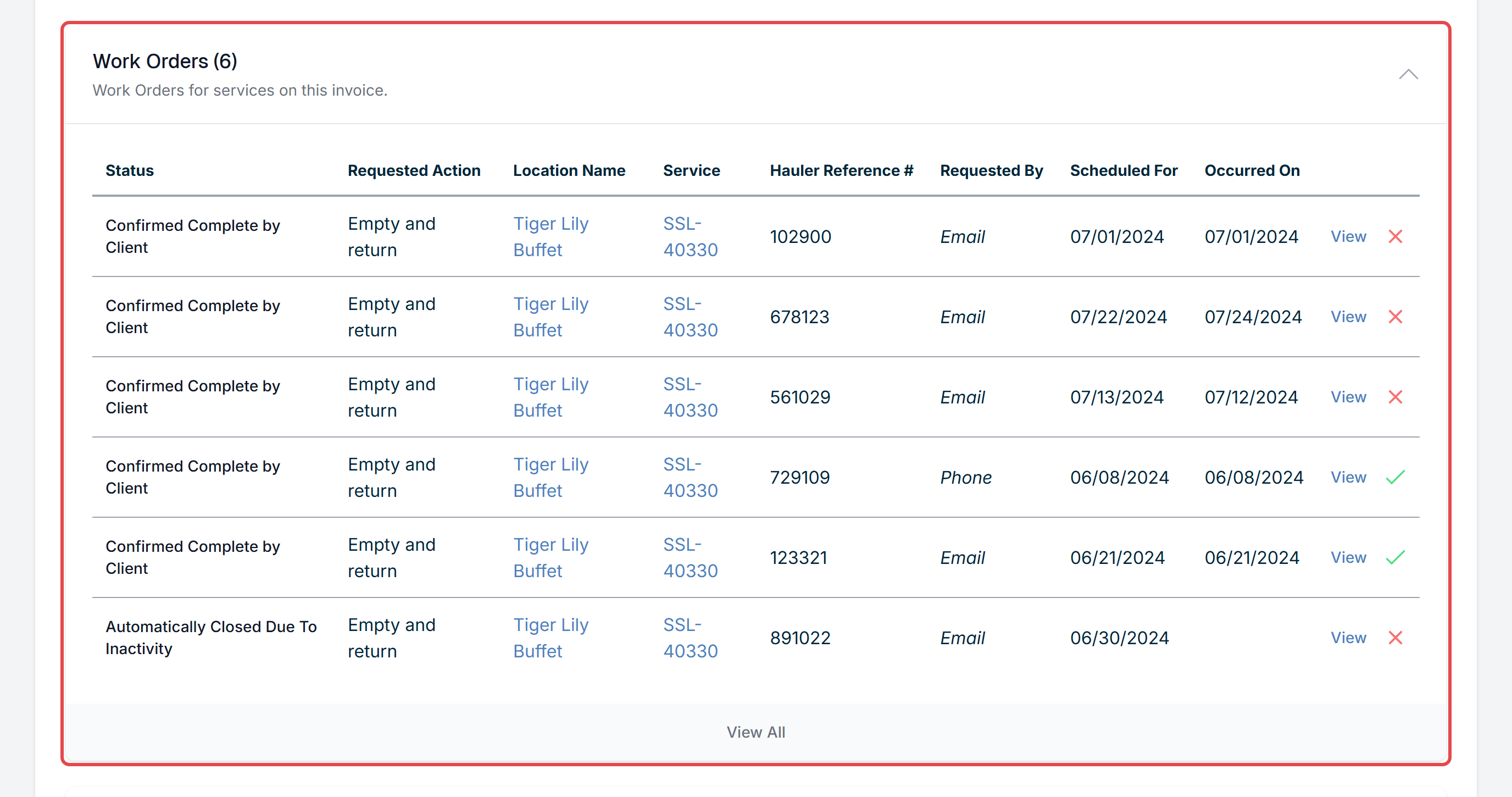
Each work order shows whether a charge on this invoice has been linked to it. Linking a charge to a work order records which charge paid for that work. The link shows on the work order and is carried onto the pickups Discovery creates when the invoice is approved.
Unlike incidents, work orders need no setup to appear on the audit page. There is no "Show on Vendor Invoice" setting and nothing to acknowledge. To learn how incidents appear in the same place, see Incidents on the Vendor Invoice Audit Page.
Which Work Orders Appear
A work order appears on a vendor invoice's audit page when both of the following are true:
- Its service belongs to the invoice's vendor account. Every service on the vendor account counts, not only the services billed on this invoice. Services terminated more than three months before the invoice date are left out.
- Its date falls within the invoice's billing period. The billing period is worked out from the dates of the invoice's line items, including sales tax lines. It starts on the first day of the month of the day before the earliest line item date, and ends on the last day of the month of the day after the latest line item date. If the invoice has no line items yet, the invoice date's month is used.
Note: Because of the extra day on each side, a line item dated the 1st of a month also brings in the previous month's work orders, and a line item dated the last day of a month also brings in the next month's. For example, an invoice with charges from 06/08 to 06/30 and a sales tax line dated 07/01 shows work orders from June 1 through July 31.
The date Discovery uses for a work order is the first of these that is filled in:
- Occurred At, the date the work was completed (shown as Occurred On on the audit page)
- Scheduled with Vendor for (shown as Scheduled For on the audit page)
- Client Requests Completion By
Note: Work orders of every status are listed, including cancelled ones, so you can see when a hauler bills for work that was cancelled. A work order also stays on the list after it has been linked, and it appears on every invoice whose billing period covers its date.
What You See for Each Work Order
The section heading shows how many work orders were found, for example Work Orders (6). The section is open when there are work orders to show and closed when there are none. Click the heading to open or close it. When there are no work orders, the section reads "There are no work orders available for this invoice."
Each row shows:
- Status
- Requested Action
- Location Name, which links to the location
- Service, the service ID, which links to the service
- Hauler Reference #, or "Not Set"
- Requested By, or how the work order was received if no contact requested it
- Scheduled For
- Occurred On
- View, which opens the work order
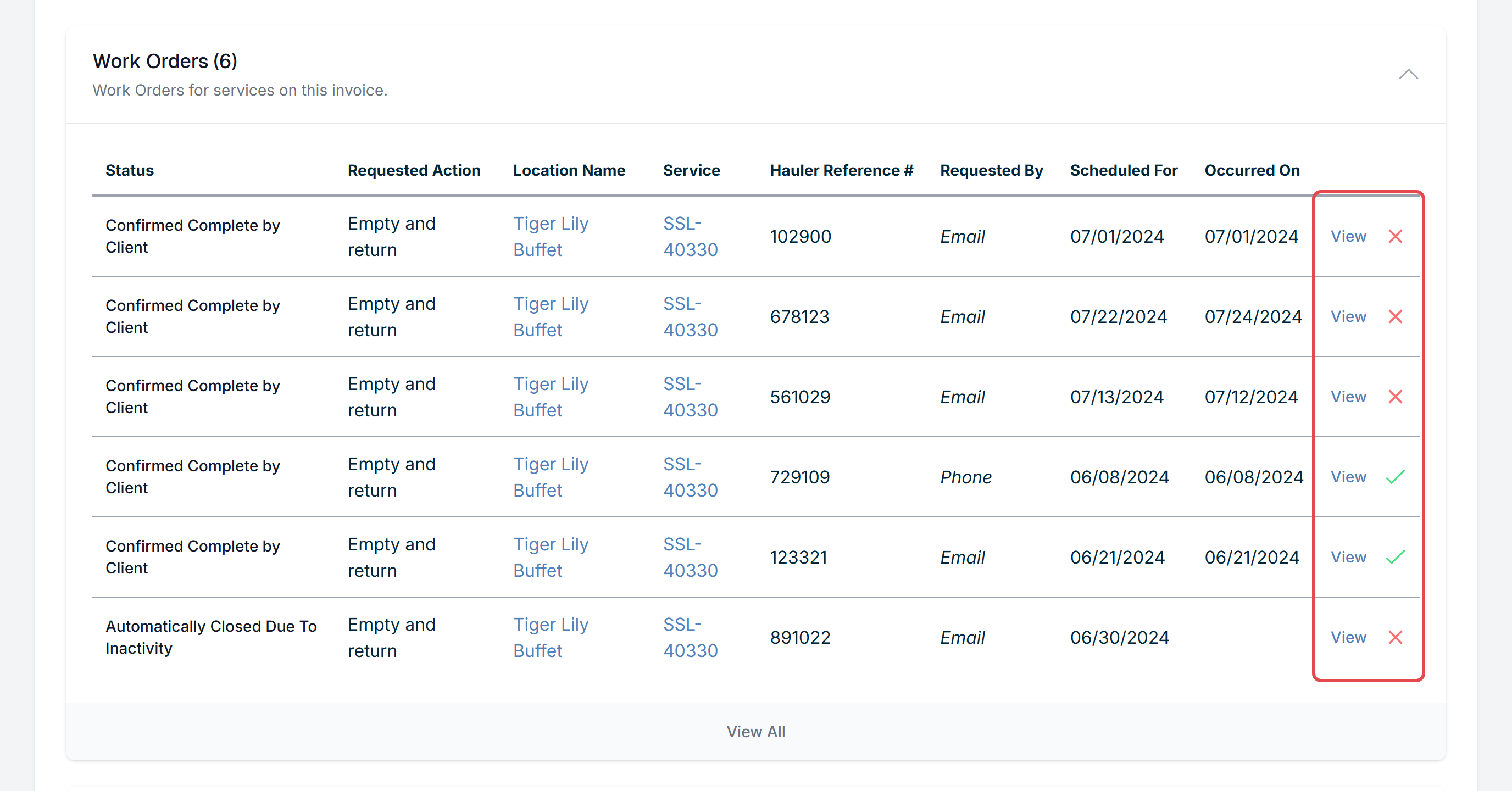
At the end of each row, a green check means at least one line item on this invoice is linked to the work order. A red X means none is.
How Charges Are Linked to Work Orders Automatically
When an extracted invoice is processed into a vendor invoice, Discovery tries to link each charge to a work order on its own. A charge is linked only when all of these match:
- The service. The work order and the charge are on the same service.
- The date. The work order's date is the same day as the charge's date. For services with a Pioneer Compactor Monitor, see How do Vendor Invoices Affect Pickups? for how monitor work orders are matched over a range of dates.
- The type of charge and the requested action.
Charge types and the requested actions they match:
- Base, Per Occurrence and Per Unit charges → Empty and Return
- Extraneous Charge, Extra Pickup fee → Extra Pickup
- Extraneous Charge, Bulk Item Removal fee → Bulk Item Removal
- Extraneous Charge, Delivery or Initial Delivery fee → Delivery
- Extraneous Charge, Relocate fee → Relocate
- Extraneous Charge, Removal fee → Remove from Site
- Extraneous Charge, Swap fee → Commercial Bin Exchange
If more than one work order could match, Discovery looks for each work order's Hauler Reference # in the charge description. If the reference numbers of more than one work order appear, it compares the work orders' confirmed quantity with the charge's quantity. If it still can't tell which work order is right, or no reference number appears in the description, it leaves the charge unlinked for you to link by hand.
Work orders that were cancelled (Cancelled by Client, Cancelled by Vendor, Cancelled (duplicate work order) or Vendor unable to complete) are never linked automatically. Work orders that were Automatically Closed Due To Inactivity can still be linked.
Linking a Charge to a Work Order Yourself
You can link, change or remove a charge's work order while the invoice is Matched, Allocated or Invalid Allocation. Once auditing has started, line items can no longer be edited. To change them, roll the invoice back to Allocated first. Its work order links are kept.
- Click Invoicing > Audit and open the vendor invoice.
- In the line items, click the pencil icon (Edit Line Item) on the charge.
- Make sure the charge has the right Type and Service. The Work Order field appears only for Base, Per Occurrence, Per Unit and Extraneous charges.
-
In Work Order, choose the work order. The list holds that service's work orders from the Work Orders section, grouped by date, and shows each one by its Hauler Reference # (or its ID if none is set).
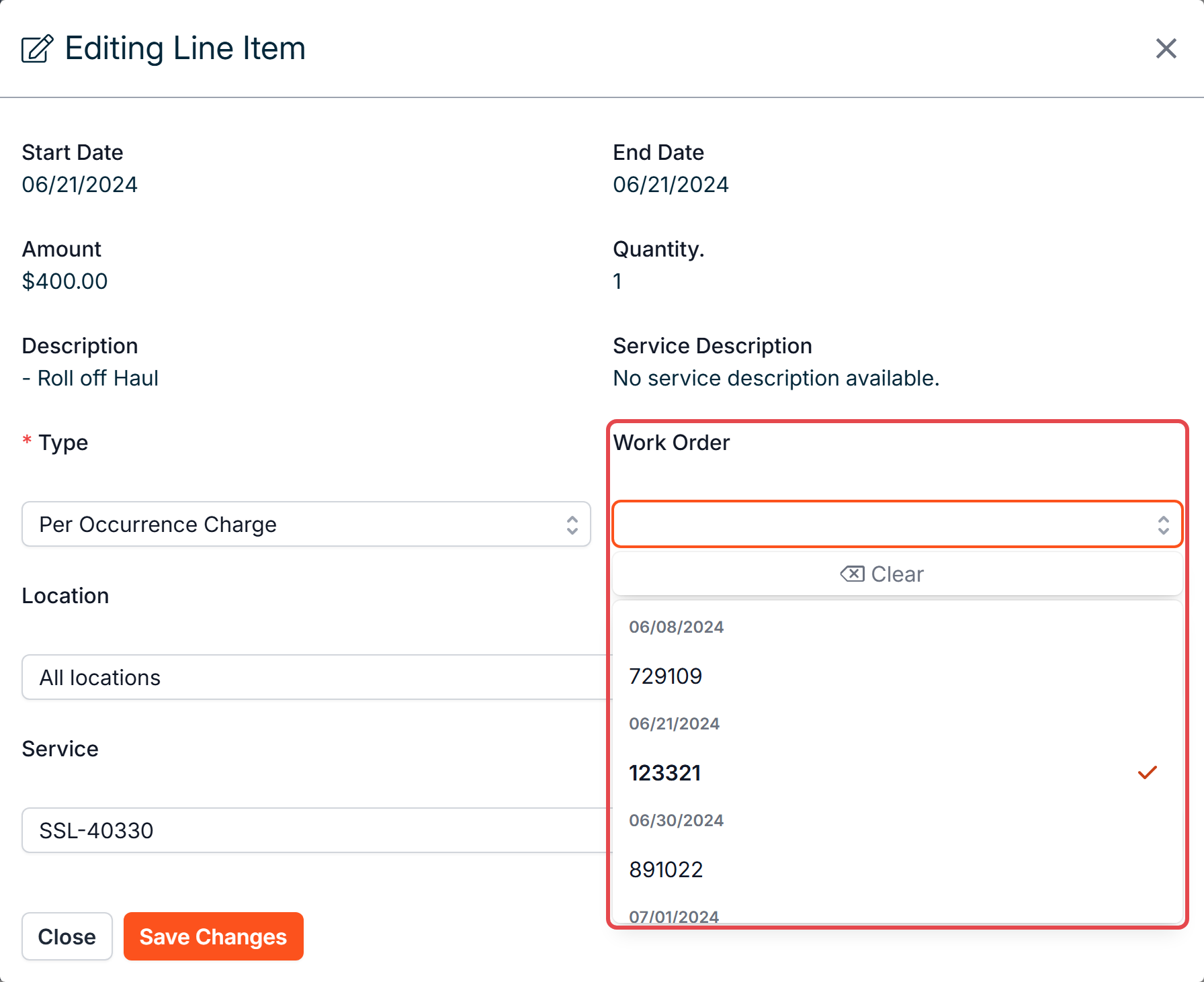
- Click Save Changes.
To link several charges at once, check them and click Bulk Assign. Choose the Type, the Service and the Work Order. All three are applied to every selected charge, and the work order must belong to the service you choose.
Tip: If you change a charge's service, its work order is cleared. Choose the service first, then the work order.
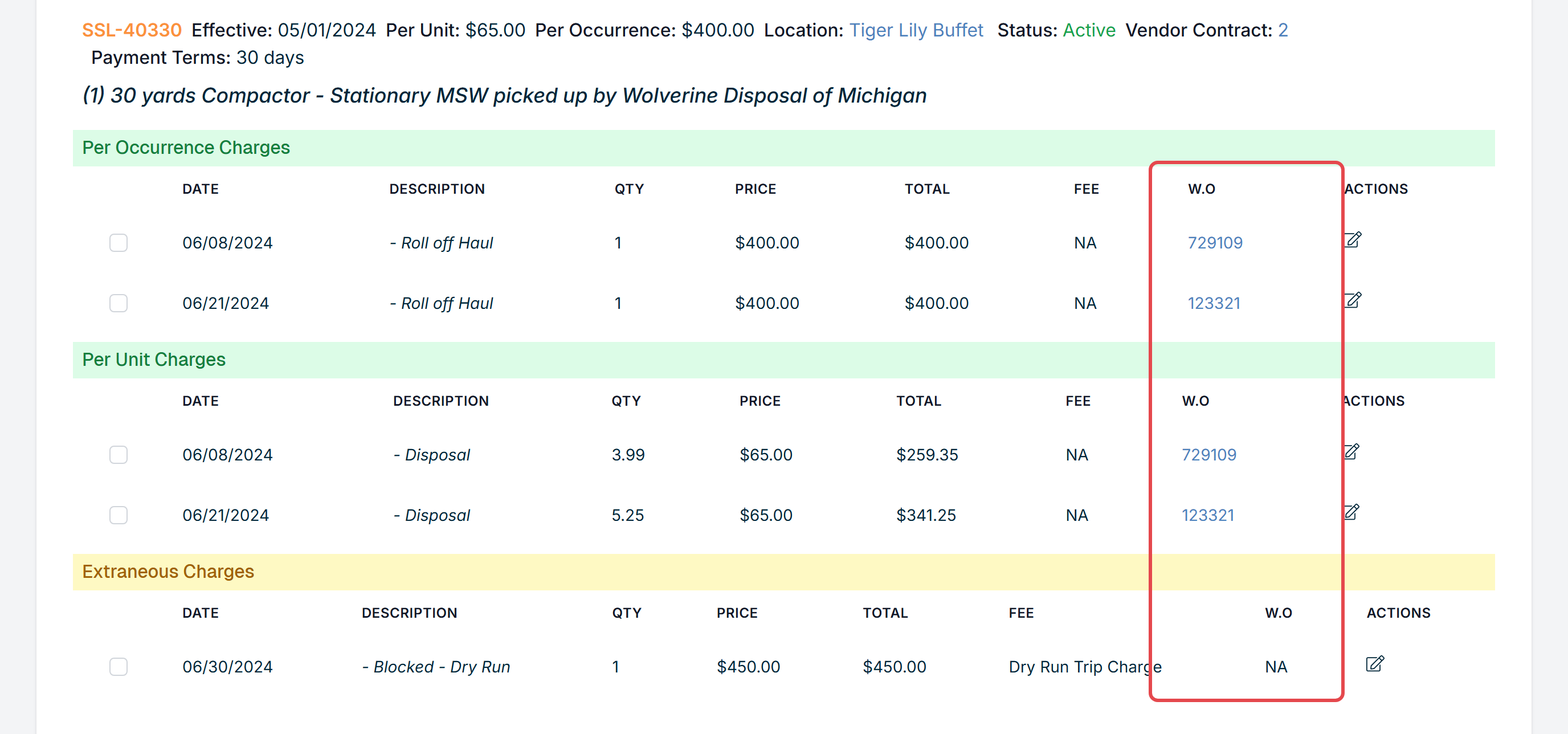
The work order linked to each charge shows in the W.O column of the line items, by Hauler Reference # or ID. "NA" means the charge is not linked.
Seeing an Invoice's Charges from the Work Order
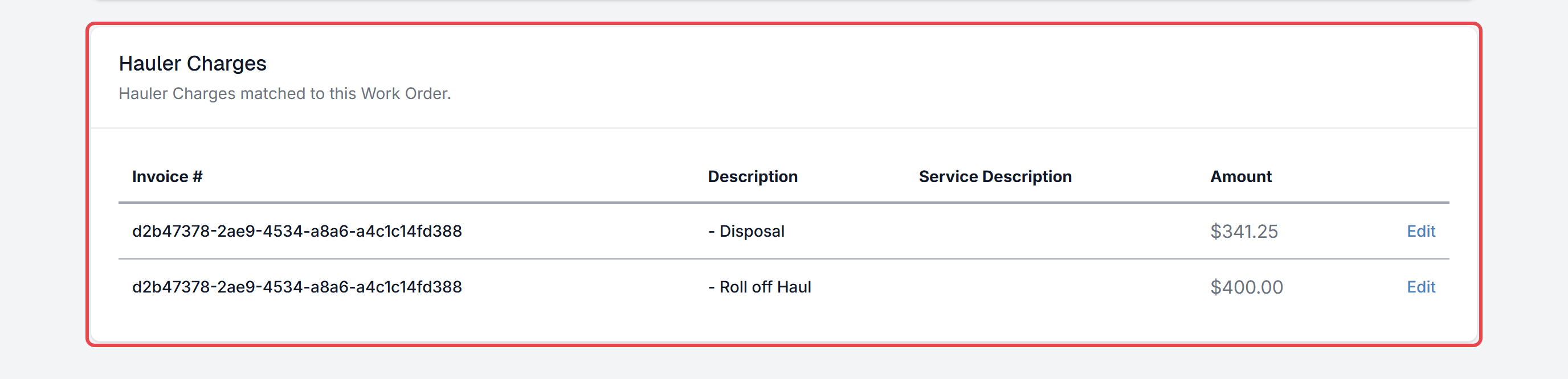
From a work order, the Hauler Charges section at the bottom of the page lists the vendor invoice charges linked to it (up to 12), with the vendor invoice, description, service description and amount. Click Edit to open the vendor invoice.
- If your role can't view Audit, the section is empty and reads "No charges associated with this work order (yet)."
- The Edit link appears only if your role can manage Audit.
What Happens When an Invoice Is Approved
When the invoice is approved, Discovery creates its pickups, and each pickup created from a linked charge is linked to the same work order. Approving does not change the work order's status. To learn more, see How do Vendor Invoices Affect Pickups?
Rollback and Reprocessing
- Rolling back an invoice to Allocated or Audited keeps its work order links.
- Reprocessing an invoice rebuilds its line items from the extracted invoice. Links you made by hand are lost, and Discovery links charges automatically again.
Note: If you have linked charges by hand, check the Work Orders section again after reprocessing and relink anything that was not linked automatically.
Who Can See and Link Work Orders
- The Work Orders section appears only for people whose role can view Work Orders.
- Linking a charge to a work order requires permission to manage Audit.
To learn more, see Roles and Permissions.
Quick Reference
| Situation | What to Do |
|---|---|
| A work order should appear on an audit but doesn't | Check that its service is on the invoice's vendor account and that its Occurred At date (or Scheduled with Vendor for, or Client Requests Completion By) falls within the invoice's billing period |
| A work order shows a red X | No charge on this invoice is linked to it. Edit the matching charge and choose the work order, or confirm the hauler hasn't billed for it yet |
| The work order you want isn't in the Work Order field | Check that the charge's Service matches the work order's service and that the charge type is Base, Per Occurrence, Per Unit or Extraneous |
| A cancelled work order was billed | Cancelled work orders still appear in the section, so you can spot the charge and dispute it with the hauler |
| You need to see which invoice paid for a work order | Open the work order and check the Hauler Charges section (your role needs to be able to view Audit) |
| The invoice was reprocessed | Check the Work Orders section again and relink any charges you had linked by hand |

If you have additional questions or need more in depth information, please feel free to send us a message using the help beacon in the lower right-hand corner.