
Incidents on the Vendor Invoice Audit Page
This document explains how to flag incidents for billing visibility and how the billing team reviews them during vendor invoice auditing.
Overview
Incidents flagged as billing-relevant appear on the vendor invoice audit page alongside work orders, giving the billing team visibility into relevant notes — expected credits, disputed charges, and other billing context — while auditing vendor invoices.
The two teams involved:
- Customer service team — flags incidents as billing-relevant and sets the expected vendor invoice date
- Billing team — reviews flagged incidents on the audit page and acknowledges them once they've been accounted for
Setting Up Incident Reasons
Incident reasons control the default billing visibility behavior for incidents. A user whose role has the settings permission configures these in Settings → Incident Reasons.
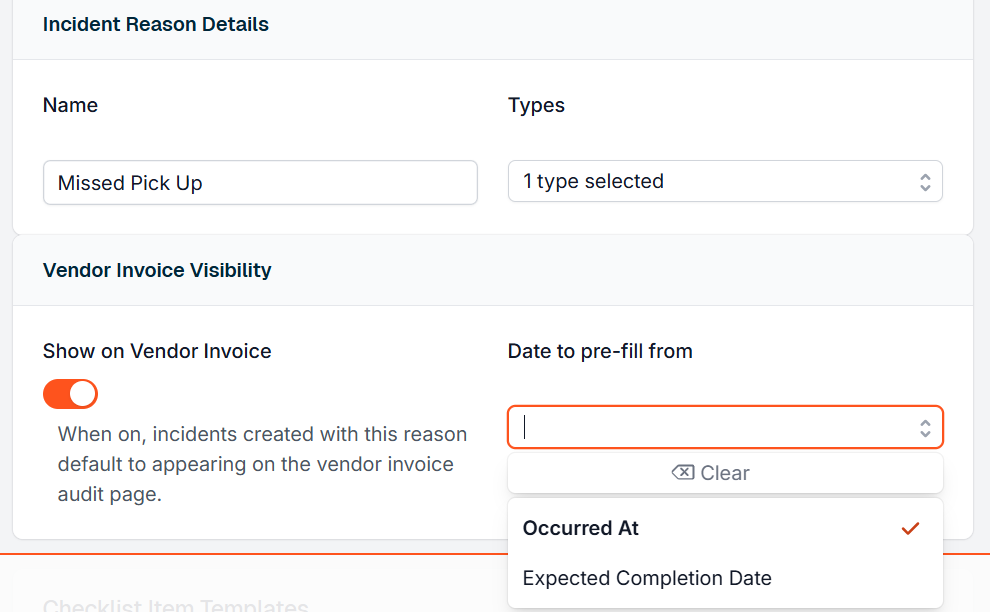
Fields on incident reasons
Show on Vendor Invoice (toggle, default: off) When enabled, any incident created with this reason will default to "Show on Vendor Invoice" = on. This saves the customer service team from having to manually toggle it every time for high-frequency billing-relevant incident types (e.g., missed pickups where a credit is expected).
Date to pre-fill from (selector: Occurred At or Expected Completion Date, default: Occurred At) When "Show on Vendor Invoice" is on for this reason, this setting tells the system which date from the incident to automatically copy into the incident's Expected Vendor Invoice Date field on creation. Choose whichever date in your workflow best approximates when the charge would appear on a vendor invoice.
- Use Occurred At for incidents where the billing impact lines up with when the issue happened (e.g., a missed pickup on March 5 would appear on the March invoice).
- Use Expected Completion Date for incidents where resolution timing determines the billing period (e.g., a service suspension that won't be resolved until month-end).
Why this matters: The Expected Vendor Invoice Date is what the system uses to match an incident to a specific vendor invoice. If the date is wrong — or not set at all — the incident won't appear during the right audit. Getting the pre-fill logic right at the reason level means individual users don't need to think about it for routine cases.
Flagging an Incident for Billing Visibility
When recording or editing an individual incident, customer service team members will find two billing-related fields.
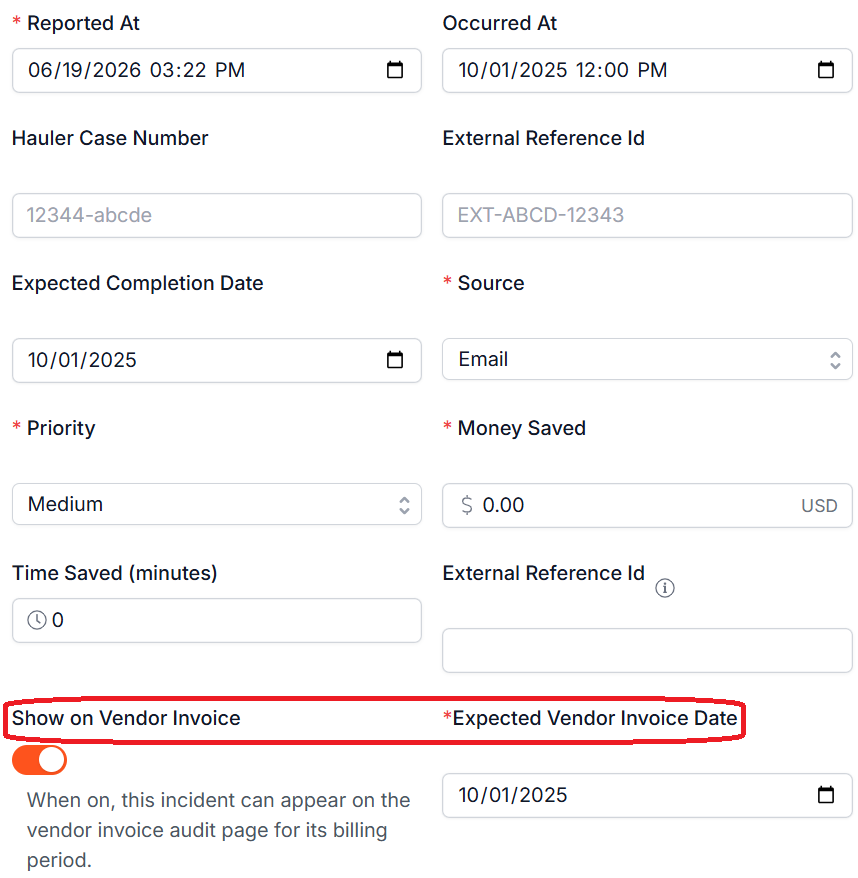
Fields on incidents
Show on Vendor Invoice (toggle) Defaults to the setting on the incident's reason (configured above). Turn this on to flag the incident as billing-relevant — meaning the billing team should see it when auditing vendor invoices.
Expected Vendor Invoice Date (date field) The billing period this incident belongs to. This tells the system which vendor invoice's audit the incident should appear on.
- If the incident reason has a pre-fill date configured and "Show on Vendor Invoice" defaults to on, this field is populated automatically when the applicable pre-fill date field is populated and saved.
- If the incident reason has no pre-fill configured, the field is left blank — you must enter it manually.
- This field is required when "Show on Vendor Invoice" is on. Saving is blocked without it. If you try to save and the field is empty, you will see a validation error — enter the expected vendor invoice date before saving.
Edge case — wrong pre-fill date: If the auto-populated date doesn't match the billing period you expect, you can override it manually. The pre-fill is a convenience default, not a lock.
Edge case — incident spans multiple billing periods: If an incident has billing implications across more than one invoice period (e.g., a long-running service suspension billed over two months), create separate incidents for each billing period or work with the billing team to determine the most appropriate date to use.
How Incidents Appear on the Vendor Invoice Audit Page
During vendor invoice auditing, an Incidents bucket appears below the Work Orders bucket. It works the same way the Work Orders bucket does.
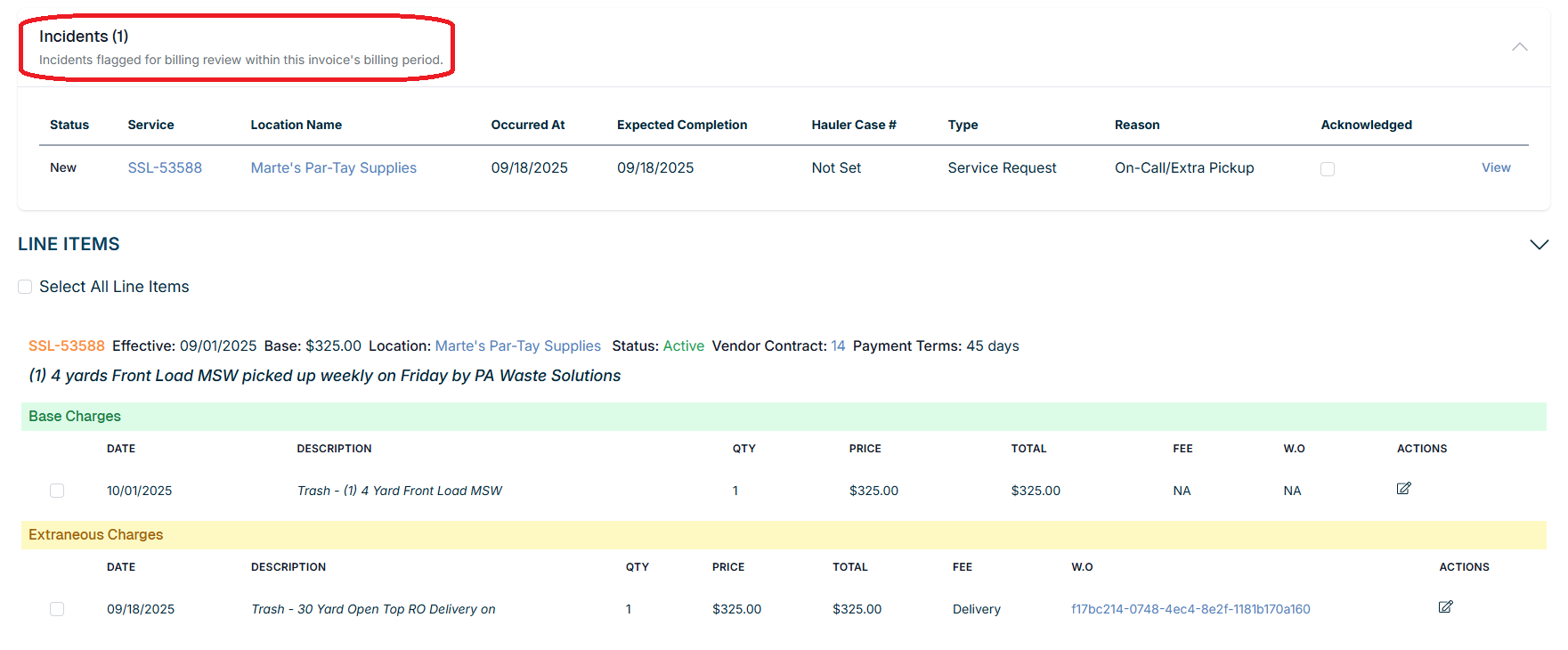
Which incidents appear
An incident appears on a vendor invoice audit if all three of the following are true:
- "Show on Vendor Invoice" is turned on for that incident
- The incident has not yet been acknowledged
- The incident's Expected Vendor Invoice Date falls within the billing period covered by that invoice's line items
For location-level incidents (incidents not tied to a specific service): the incident will appear on any vendor invoice where at least one service on the invoice belongs to the same location as the incident. This handles cases where an issue applies to the location broadly rather than a specific service line.
What you see for each incident
Each incident row in the bucket displays: status, service ID, location name, occurred at date, expected completion date, hauler case number, incident type, and incident reason.
Bucket behavior
- The Incidents bucket is collapsed by default when there are no incidents to show.
- The Incidents bucket is expanded by default when incidents are present, so the billing team can't miss them.
Why incidents might not appear when you expect them to: The most common reasons are:
- "Show on Vendor Invoice" is off on the incident
- The Expected Vendor Invoice Date is not set or falls outside this invoice's billing period
- The incident has already been acknowledged (it won't reappear unless the invoice is rolled back or reprocessed — see below)
Acknowledging Incidents During Audit
When a billing team member reviews an incident on the audit page, they can mark it as Acknowledged once they've accounted for it (noted the expected credit, documented the dispute, confirmed the charge, etc.).

What acknowledgment does:
- Removes the incident from all future vendor invoice audit pages
- Records that the billing team has reviewed it in the context of this invoice
- Links the invoice to the incident's "Vendor Invoices" tab
What acknowledgment does not do:
- It does not resolve the incident itself — the incident status is managed separately in the incidents module
- It does not automatically apply any credits or adjustments to the invoice — that is a separate billing workflow
Rollback and Reprocessing Behavior
If a vendor invoice is rolled back or reprocessed, any incidents that were acknowledged during that invoice's audit become un-acknowledged automatically, and the Vendor Invoices tab on each affected incident updates to reflect the reversal.
Important: Acknowledgements are only cleared when the invoice is rolled back to Allocated. Rolling back to Audited alone does not reverse acknowledgements — the incident will not reappear until the invoice reaches Allocated status.
This means those incidents will reappear on the audit page the next time the invoice is audited. This is intentional: if the invoice data has changed, the billing team needs to re-review the relevant incidents with the updated context.
If an incident appeared on more than one invoice: An incident's Expected Vendor Invoice Date can fall within the billing period of multiple invoices (e.g., a date of 2/15 may appear on both a 2/1 and a 3/1 invoice). If the invoice where the incident was acknowledged is rolled back to Allocated, the incident becomes un-acknowledged on all invoices where it had been acknowledged — not just the one being rolled back. It will reappear on audit pages for all of them.
Why this matters: Rolling back an invoice means the audit is being redone. Carrying forward stale acknowledgements would mean the billing team might skip reviewing incidents that are now material in light of the revised invoice data.
Viewing Which Invoices Acknowledged an Incident
From an individual incident's detail page, the Vendor Invoices tab (positioned between Work Orders and Initial Notification) lists the vendor invoice that has acknowledged this incident, with a link to the invoice.
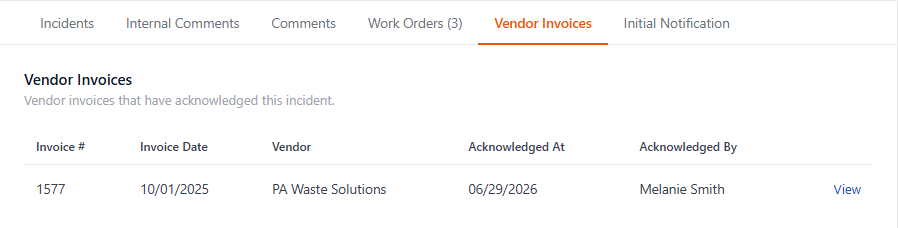
Use this tab to:
- Confirm that an incident has been properly reviewed by the billing team
- Trace which invoice audits have accounted for a specific billing-related note
- Investigate if an incident that should have been acknowledged hasn't appeared on an audit yet
Quick Reference
| Situation | What to Do |
|---|---|
| Incident should appear on audit but doesn't | Check that "Show on Vendor Invoice" is on and an Expected Vendor Invoice Date is set that falls within the invoice's billing period |
| Expected Vendor Invoice Date is wrong after auto-fill | Override it manually on the incident |
| Incident is for a location, not a specific service | It will appear on any invoice with a service at that location — no extra configuration needed |
| Incident was acknowledged but the invoice is being rolled back | Roll back to Allocated (not just Audited); acknowledgement is automatically reversed and the incident will reappear on the next audit |
| Need to see which invoices have reviewed an incident | Open the incident → Vendor Invoices tab |
| Incident reason always relates to billing | Turn on "Show on Vendor Invoice" in the incident reason settings to make it the default for all new incidents with that reason |

If you have additional questions or need more in depth information, please feel free to send us a message using the help beacon in the lower right-hand corner.