
Moving Client Charges to a Different Fiscal Period
Sometimes a billable expense lands in one fiscal period but needs to appear on an invoice for a later period. Rather than editing vendor invoice fiscal periods to force charges into the right bucket, Discovery now lets you include previous-period unbilled expenses directly when creating a single client invoice.
Watch the video below and continue reading to learn more.
When to Use This
Use this when:
- A billable expense was extracted in an earlier fiscal period but you want it to appear on a current or future period invoice
- A client prefers to see prior-period expenses consolidated onto a single monthly invoice rather than billed separately
Important: At this time, this feature only moves charges forward — you can include an older period's expense on a newer invoice, but you cannot backdate a charge to an earlier period that has already been invoiced.
How It Works
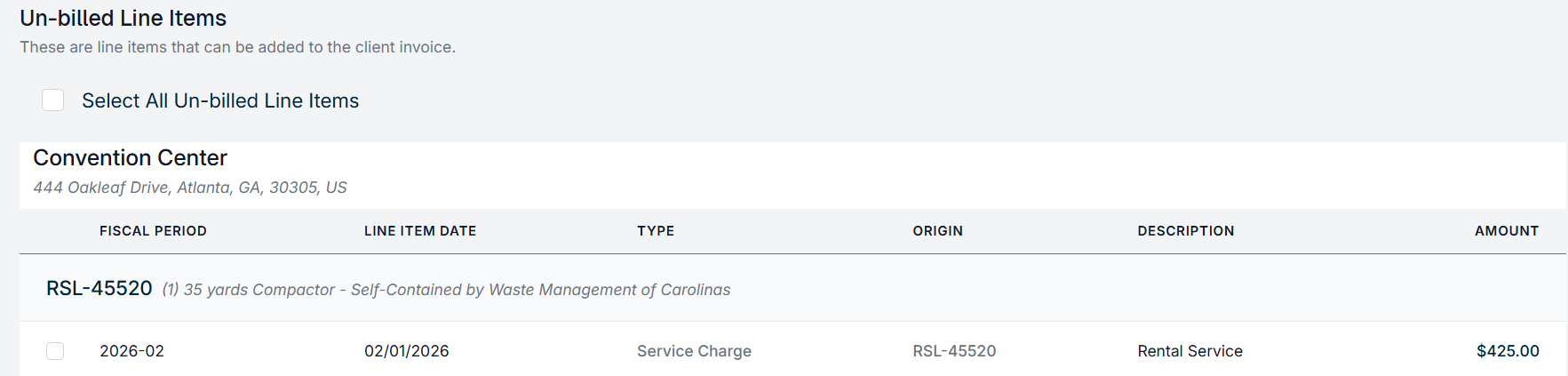
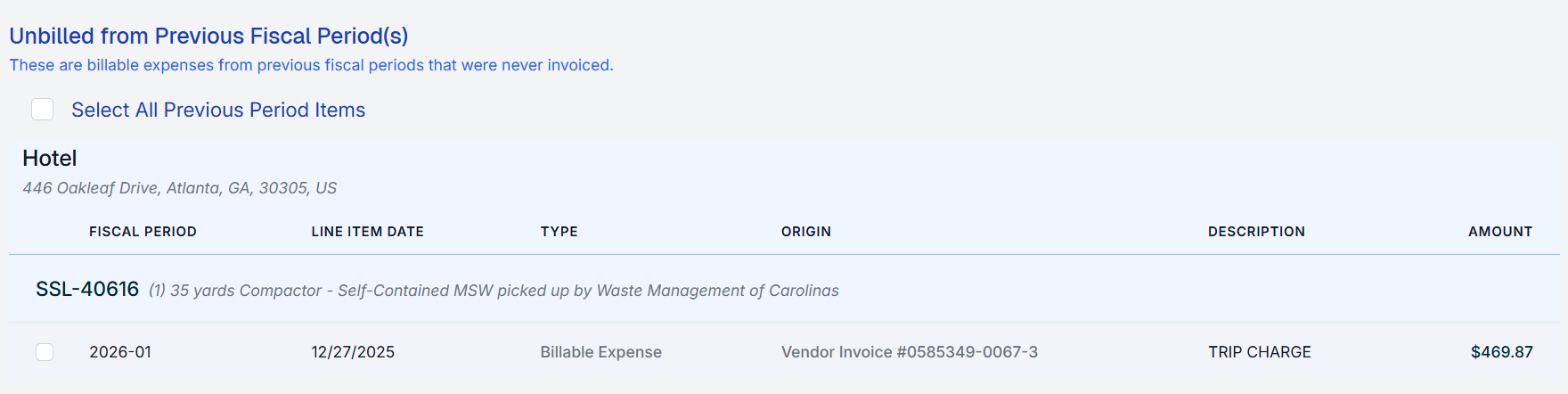
When creating a single client invoice (not batch), the invoice line item selection screen now includes unbilled, marked-up billable expenses from previous fiscal periods alongside the current period's charges. You choose which of those previous-period items to include on the invoice being created.
Once included, the charge is billed in the period you selected — it will not appear again in a future period's invoice run.
Before You Begin
Enable the Setting
This feature is controlled by your settings. It is not on by default.
- Navigate to Settings.
- Scroll to the Client Invoice Settings section at the bottom.
- Enable the Allow Previous Period Charges toggle.

- Save.
Once enabled, prior-period unbilled expenses will appear in the line item selection screen the next time you create a single invoice for this client.
Ensure Billable Expenses Are Marked Up
Only expenses that have been marked up (status: Ready to Bill) will appear. Expenses that are still in an unreviewed or unpriced state will not show up on the invoice creation screen.
Step-by-Step: Including a Previous-Period Expense on a Client Invoice
- Navigate to Revenue and select the current fiscal period (the period whose invoice you are creating).
- Click Create Invoice for the client account.
- Choose the Fiscal Period and Client Account in the invoice creation dialog.

- On the line item selection screen, you will see:
- Current period charges in the main list
- Previous-period unbilled expenses listed below, each showing its Fiscal Period (far-left column) and its Line Item Date
- Select the previous-period expenses you want to include alongside the current period charges.
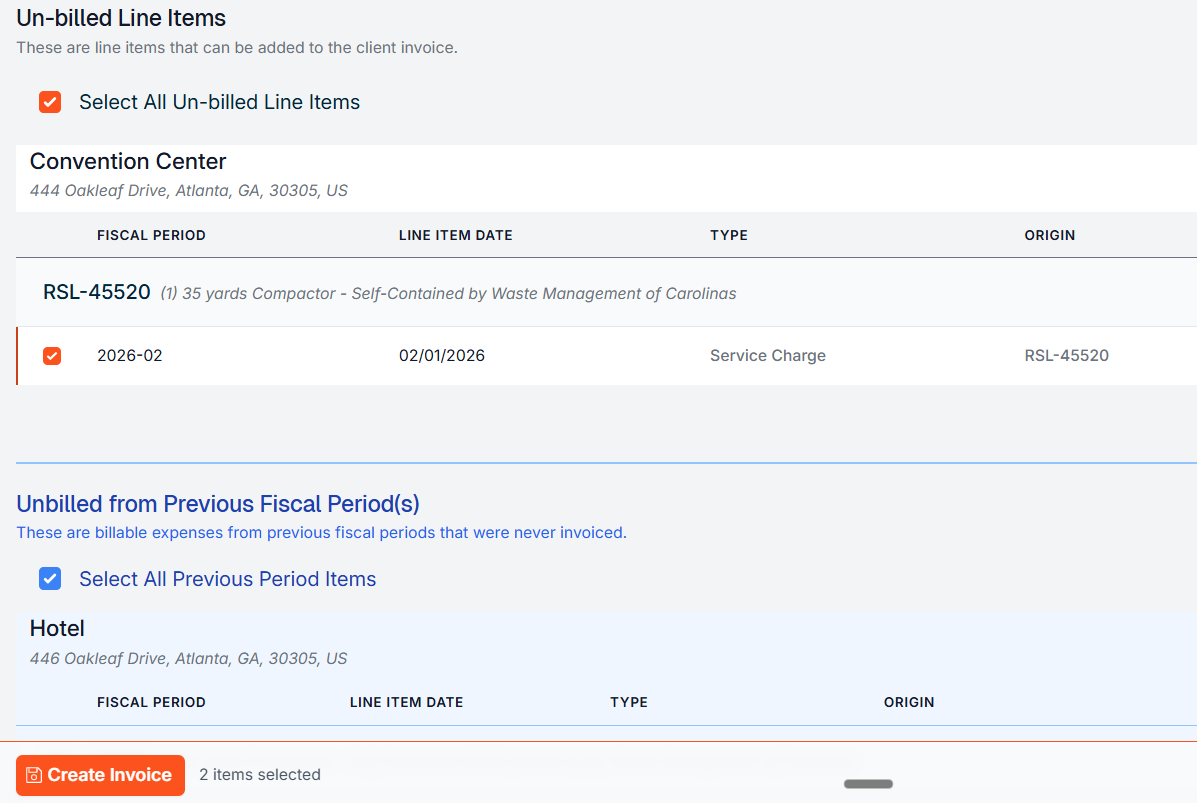
- Click Create Invoice and proceed through the normal invoice creation steps.
The resulting invoice will contain both current-period and prior-period line items. The Fiscal Period column on the invoice identifies which period each charge originated from.
Accounting Adjustments (Tenants with Accounting Integration)
If your tenant has an active accounting system integration, moving a charge between fiscal periods can misalign revenue recognition — the expense was recorded in one period but billed in another. Discovery can create adjusting journal entries to keep the books balanced.
> This setting is only available when your tenant has an accounting integration configured and the Sync Client Invoices setting is turned off. If Sync Client Invoices is on, this option will not appear.
Configure the Adjusting Journal Entry Setting
- Navigate to Accounting Integration Settings.
- Locate the Create adjusting journal entries toggle.
- Enable the toggle.
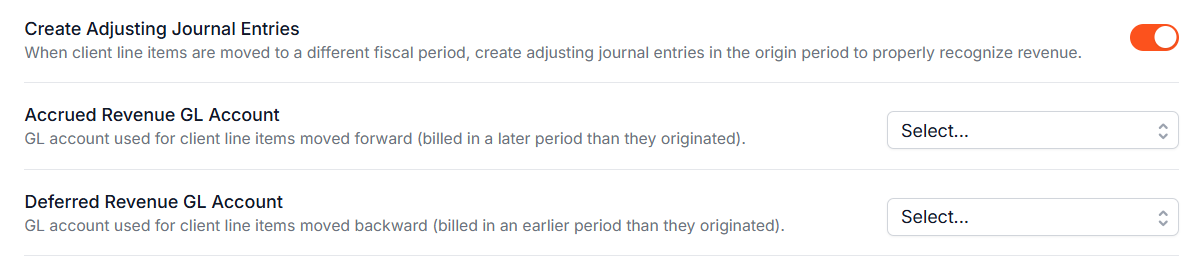
- Select the required GL accounts:
- Accrued Revenue — used when a charge is moved forward (billed in a later period than it originated)
- Deferred Revenue - used when a charge is moved backward (billed in an earlier period than it orginated)
- Save.
You cannot save this setting with the toggle on unless both GL accounts are selected. If the setting is enabled but GL accounts are not configured, you will be blocked from moving charges between fiscal periods until the accounts are set.
What the Adjusting Entries Look Like
When an invoice or credit memo containing a moved charge is sent, Discovery creates an adjusting journal entry in the origin period of that charge:
On the invoice journal entry itself, moved charge lines use the Accrued Revenue or Deferred Revenue GL code instead of the normal revenue GL code.
If the toggle is off, no adjusting entries are created and all invoice/credit memo journal entries use the standard revenue GL code — the same behavior as before this feature was available.
Tracing Adjusting Entries to Their Source
Each adjusting journal entry created after May 2026 is linked to the specific client line item that produced it. Billing specialists can use this link to identify the exact originating line item for any adjusting entry — useful when researching discrepancies or preparing to void an invoice or credit memo. Client line items that did not produce an adjusting entry will show no link. Adjusting entries created before May 2026 were not backfilled and may require manual investigation.
Relationship to the Old Approach
Previously, the only way to move extraneous charges to a different fiscal period was to manually edit the vendor invoice's fiscal period before approving it. That approach required:
- Editing the vendor invoice fiscal period before approval (not possible after)
- Rolling back and re-approving if you missed the window
- Moving all charges on that vendor invoice, not just the ones you wanted
The new single-invoice workflow allows you to pick individual billable expenses across periods without touching the vendor invoices at all.
The old approach (editing vendor invoice fiscal periods) still works and may be appropriate in some scenarios — for example, when you want to redirect all charges on a vendor invoice to a different period as a batch.

If you have additional questions or need more in depth information, please feel free to send us a message using the help beacon in the lower right-hand corner.