
How Do I Archive a Client Account?
This article explains how to archive a client account, when archiving is allowed, and how archived accounts behave across the system.
Overview
Over time, some client accounts may become inactive (for example, when a location is sold or a contract ends). To keep account lists clean and easier to manage, Discovery allows you to archive client accounts instead of deleting them.
Archiving a client account:
- Removes it from selection lists
- Prevents further edits
- Keeps historical data intact
You can also unarchive an account later if needed.
Before You Archive
A client account can only be archived if all of the following are true:
- ✅ The client account is not linked to any locations.
- ⚠️ The client account has no unpaid client invoices.
If the client account is still assigned to one or more locations, you must remove or change those assignments first.
Remove a Client Account from a Location
If a client account is assigned to a location, you must clear or change that assignment before you can archive the account.
To remove or change the client account on a location:
- Go to Locations.
- Open the location that is using the client account.
-
Click Edit.
In the Client Account field:
- Select a different active client account, or
- Set the value to None
- Click Save.
Repeat these steps for any other locations using the same client account.
Once the client account is no longer linked to any locations, you will be able to archive it.
Archive a Client Account
You can archive a client account from the Client Account view page.
To archive a client account:
- Go to Client Accounts.
- Search for and open the client account you want to archive.
- On the Client Account view page, click Archive (next to the Edit button).
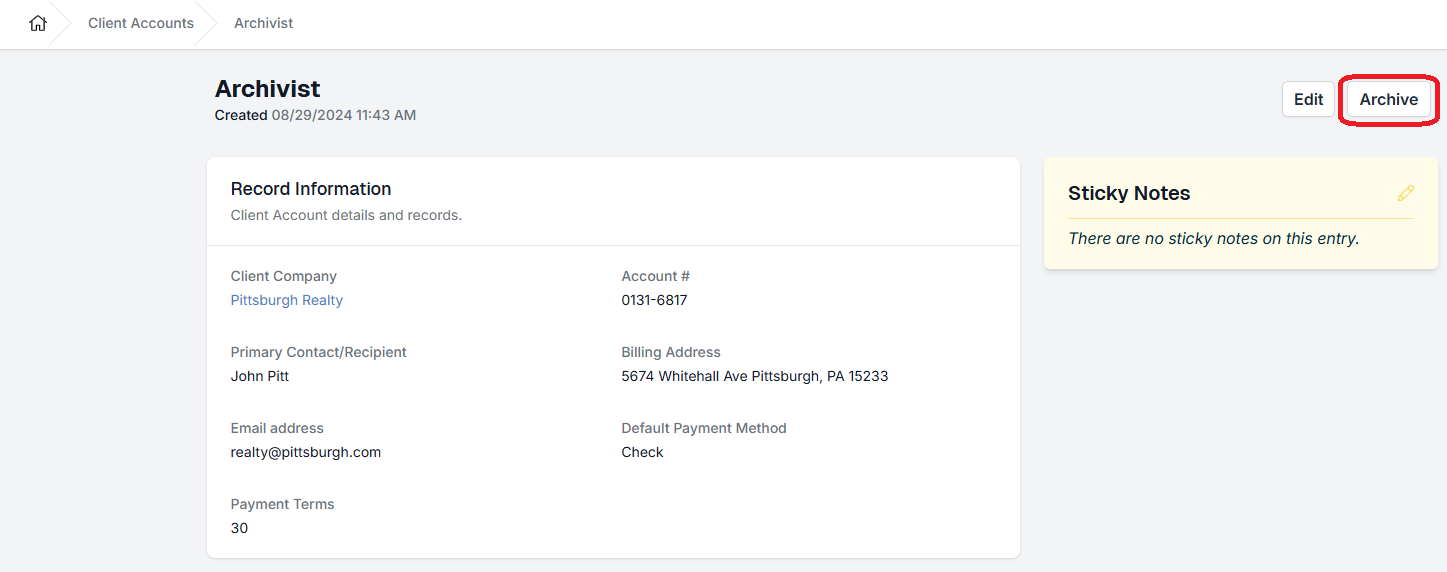
- Confirm the action when prompted.
If the account is still linked to locations or has unpaid invoices, you will see an error message and the account will not be archived.
What Happens After Archiving
Once a client account is archived:
- 🚫 It cannot be edited
- 📋 It will not appear on the Client Accounts index unless the Archived filter is set to Include Archived or Only Archived.
- 📍 It cannot be assigned to new locations
- 🕒 The page header shows:
- Archived on: date
- Archived by: user instead of the original creation timestamp
Historical data tied to the client account remains available for reporting and reference.
Unarchive a Client Account
If you need to reuse a previously archived client account, you can unarchive it.
To unarchive a client account:
- Go to Client Accounts.
- Update filters to include archived accounts.
- Open the archived client account.
- Click Unarchive.
After unarchiving, the client account:
- Can be edited again
- Will appear on the default Client Accounts index view
- Can be assigned to locations
Client Account Lists and Filters
Client Account Index Page
By default:
- Archived client accounts are hidden from the list
You can use filters to:
- Show only active accounts
- Show archived accounts
- Show both
Location Edit Page Behavior
When editing or creating a location:
- Only active client accounts appear in the Client Account dropdown
- Archived client accounts are hidden and cannot be selected
This helps prevent inactive accounts from being reused accidentally.
Common Scenarios
I see an error when trying to archive
Most commonly, this means:
- The client account is still linked to one or more locations, or
- There are unpaid invoices associated with the account
Check location assignments and client invoice status, then try again.
Tips
- Archiving is recommended instead of deleting to preserve reporting history.
- Before archiving, search for the client account in Locations to quickly find where it is still in use.
- If a location was sold or reassigned, update the location first, then archive the old client account.

If you have additional questions or need more in depth information, please feel free to send us a message using the help beacon in the lower right-hand corner.