
Vendor Invoice Force Approval
Discovery supports Force Approval of Vendor Invoices based on configurable criteria. Force Approval rules serve as an added layer of control, helping prevent invoices from being approved or paid in error.
Force Approval rules can be configured at the tenant level in Settings, with the option to set Vendor Account-specific overrides when different rules are needed.
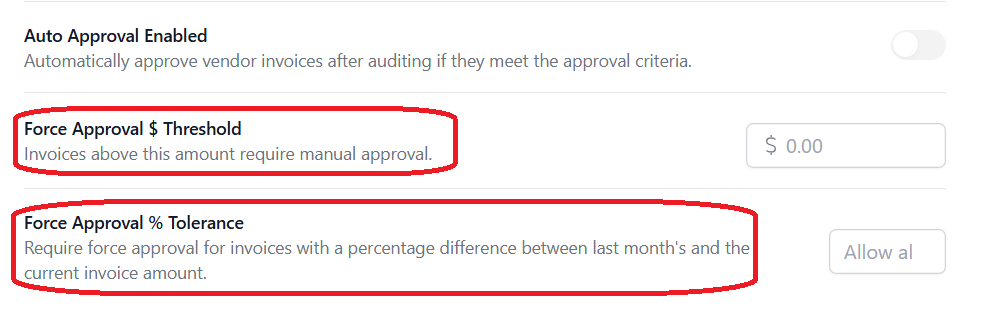
The Force Approval feature enables users to set two different checks to help identify outlier invoices: Force Approval $ Threshold & Force Approval % Tolerance (see below).
Force Approval Validation
Force Approval $ Threshold
- Invoices above this amount require force approval.
Force Approval % Tolerance
- Require force approval for invoices that vary from the previous invoice’s amount by more than this specified percentage.
Both of these settings can be configured on your tenant's settings page. Additionally, these settings can be set at the individual vendor account level. Vendor Account force approval settings will override tenant force approval settings.
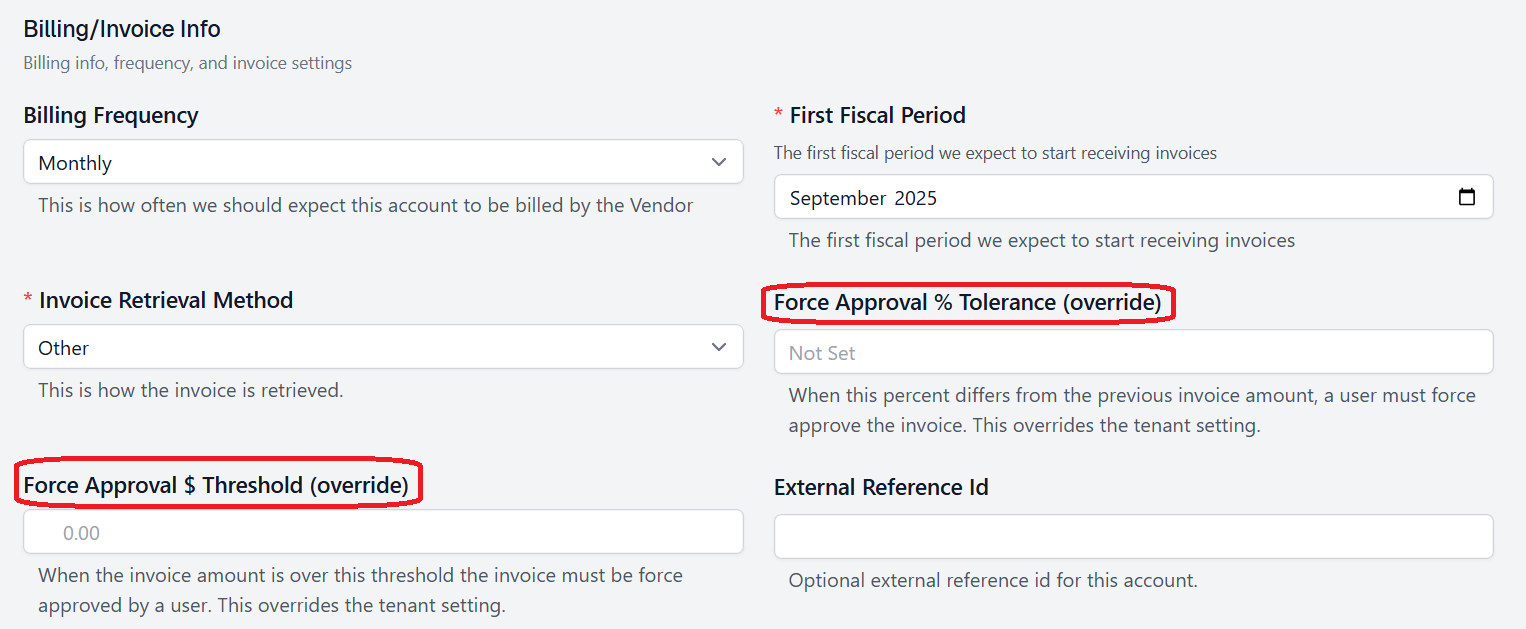
How Do I Force Approve an Invoice?
Once you have set force approval criteria at the tenant and/or vendor account level, invoices will be checked against the force approval criteria. Note the vendor account force approval criteria in the following example.
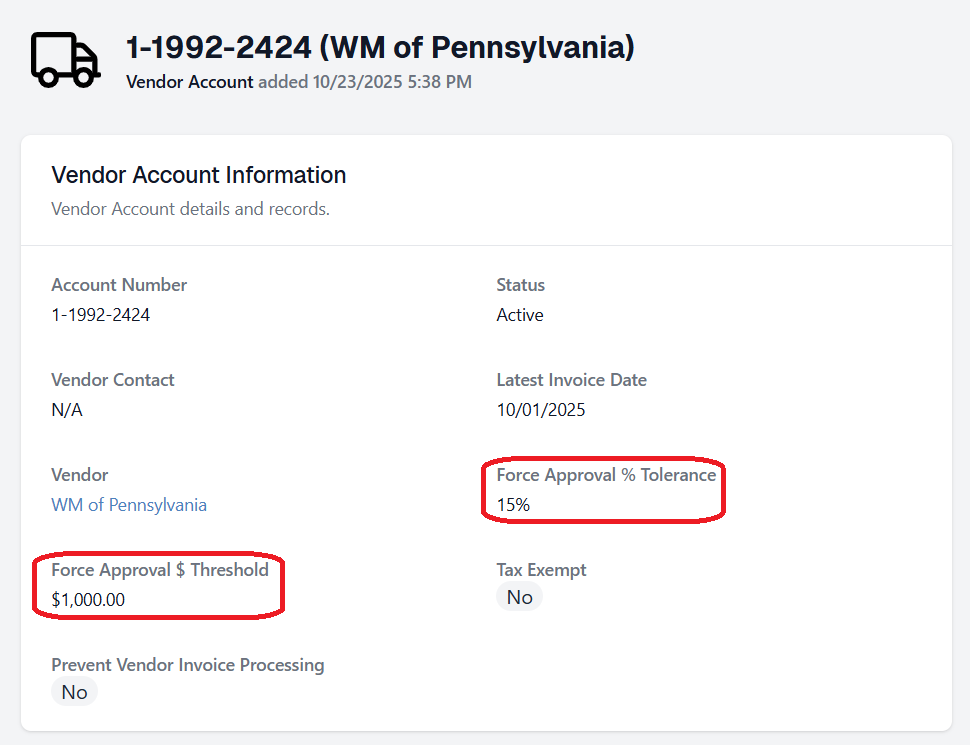
If an invoice is over the $ threshold, or its total is more than the specified percentage above or below the previous invoice, a force approval modal opens when you try to move the invoice from Audited to Approved.
The Force Approve Modal will display validation checks for both Auto Approval and Force Approval.

To force approve this invoice, we must enter a Reason for Force Approval and click Force Approve Invoice.
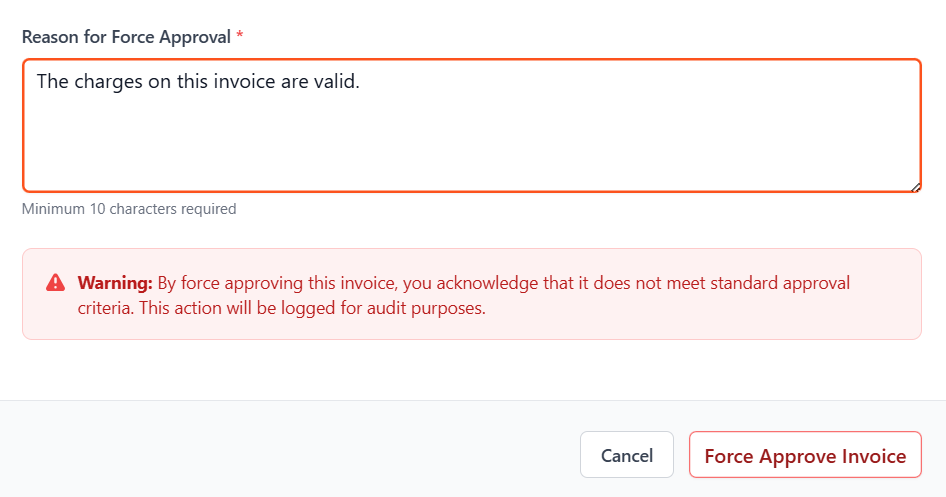
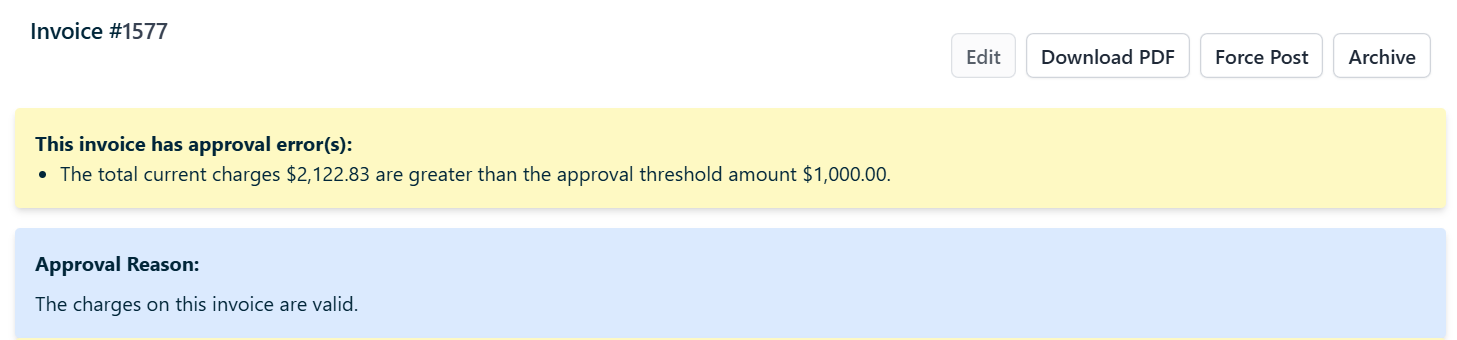
Upon force approval, the approval reason you entered will display in a blue banner near the top of the page.

If you have additional questions or need more in depth information, please feel free to send us a message using the help beacon in the lower right-hand corner.