
Rebates
Rebates are cost adjustments tied to a specific service at a location. They are used when part of a vendor cost is passed back to the client as a credit.
Each rebate is linked to:
- A client company
- A location
- A service level
Rebates can be tracked for reporting purposes, and when appropriate, they can be applied to a client invoice as a negative line item, which lowers the total amount the client owes.
Not every rebate must be passed to the client. Some rebates are recorded for internal tracking only, while others are credited to the client through invoicing.
Watch this video to learn more about rebates!
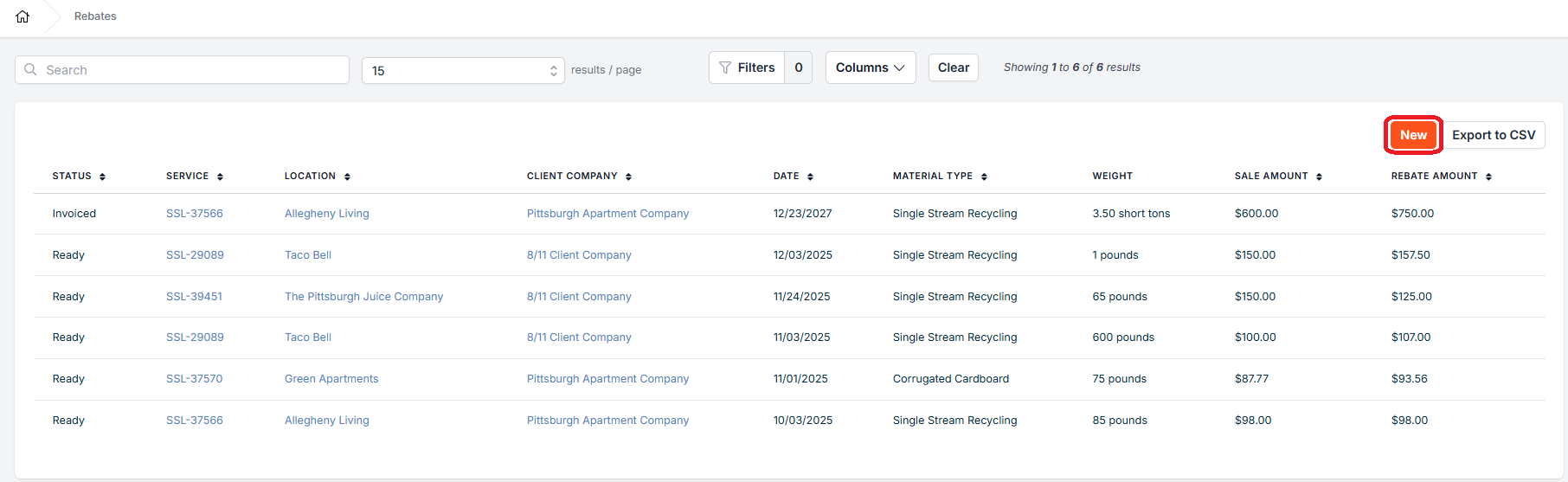
Rebates Index Page
From this page, you can:
- Search by client company, location or service
- Filter the list of rebates
- Sort by clicking on column headers
- Show or hide specific columns using the column selector
- Export a list of rebates to CSV for reporting or sharing
- Click New to create a new rebate
- Click on a rebate row to view, edit or apply it to a client billing document
Rebate Statuses
- New
- The rebate rate or rate type is missing, or the rate type is Per Unit and no Quantity is entered. The rebate can't be added to a client billing document yet.
- Ready
- All data points have been entered and saved, including rebate rate and rebate rate type. The rebate is ready to be awarded via client invoice line item.
- Applied
- The rebate has been attached as a client line item to an UNSENT client invoice.
- Invoiced
- This rebate is attached as a client line item to a SENT client invoice.
- Done
- The rebate amount is zero (for example, the Rebate Rate is $0), so nothing will be credited to the client.
Note about voided client invoices and credit memos: When a client invoice or credit memo carrying a rebate is voided, the rebate returns to Ready and can be awarded again.
How do I create a rebate?
- Click on Rebates in the navigation.
- On the rebates index page, click on New.
- Select a Client Company.

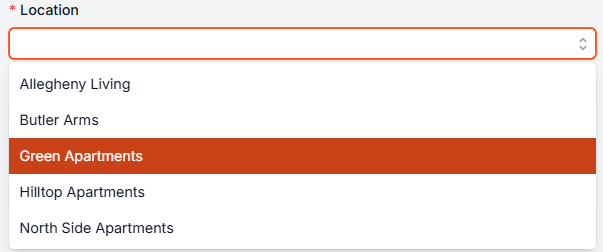
- Select a Location.
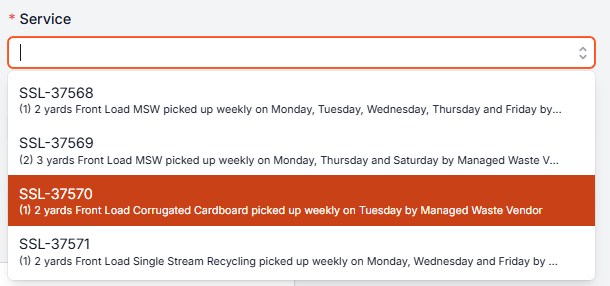
- Select a Service.
- Select a Date.

- The Material Type will auto populate based on the selected Service. You are free to select a different material type from the dropdown menu if desired.

- Enter a Quantity.

- Enter a Weight Value and Weight Unit.

- Enter a Sale Amount and Taxes (if applicable.)

- Choose whether the Rebate Rate Type is Flat or Per Unit.
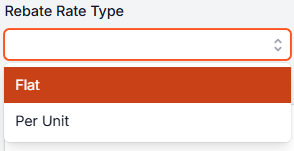
- Enter a Rebate Rate.

- If desired, enter an External Reference Id and/or Notes.
- Click on Save.
How do I edit a rebate?
- Click on Rebates in the navigation.
- Use the search bar in combination with search and filter options to find your intended rebate. Click on the rebate to view it.
- Click Actions, then Edit Rebate.
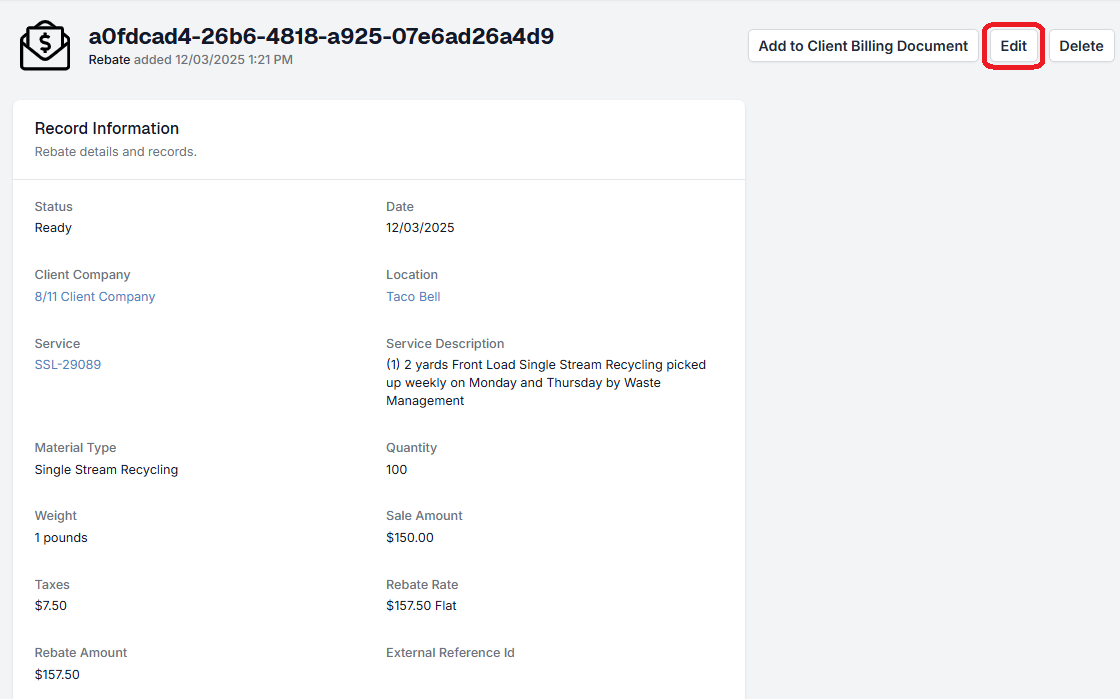
- Make your intended changes. In this example, we are changing the Rebate Rate Type to Per Unit and the Rebate Rate to $0.75 per unit.

- Click on Save to submit changes.
The changes will be reflected on the rebate's view page.

How do I Add a Rebate to a Client Invoice?
- Go to Rebates and find your desired rebate. Click on the rebate to view it.
- Click Actions, then Add to Client Billing Document. This option only appears when the rebate is Ready.

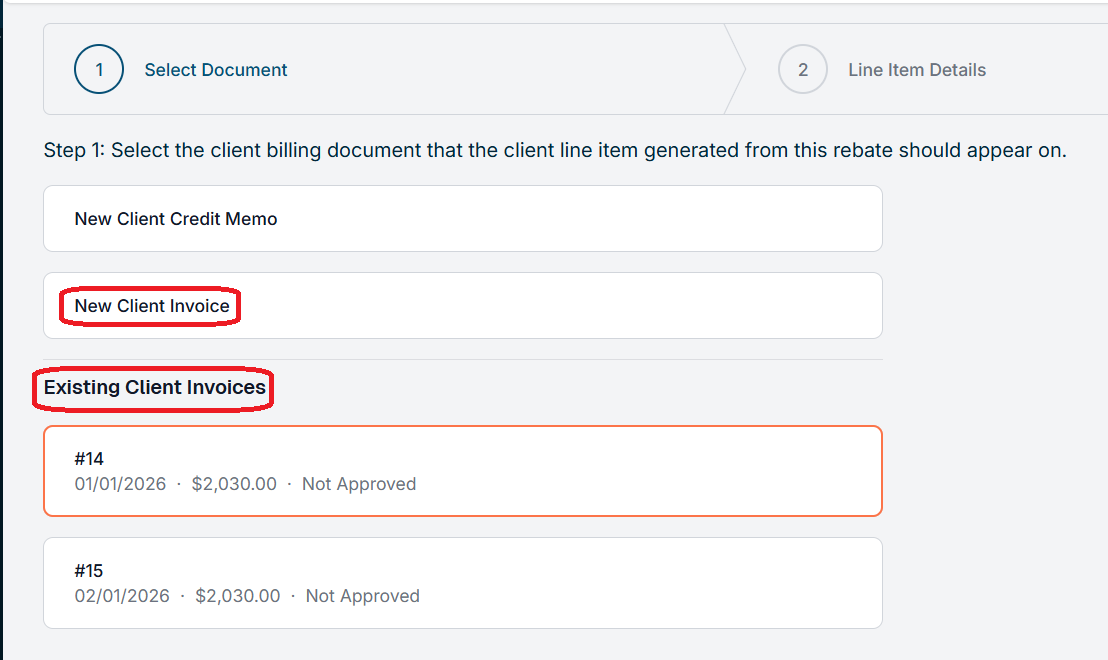
- Choose New Client Invoice, or pick an invoice under Existing Client Invoices. Only invoices for the location's client account that are Not Approved or On Hold are listed. Then click Next Step.
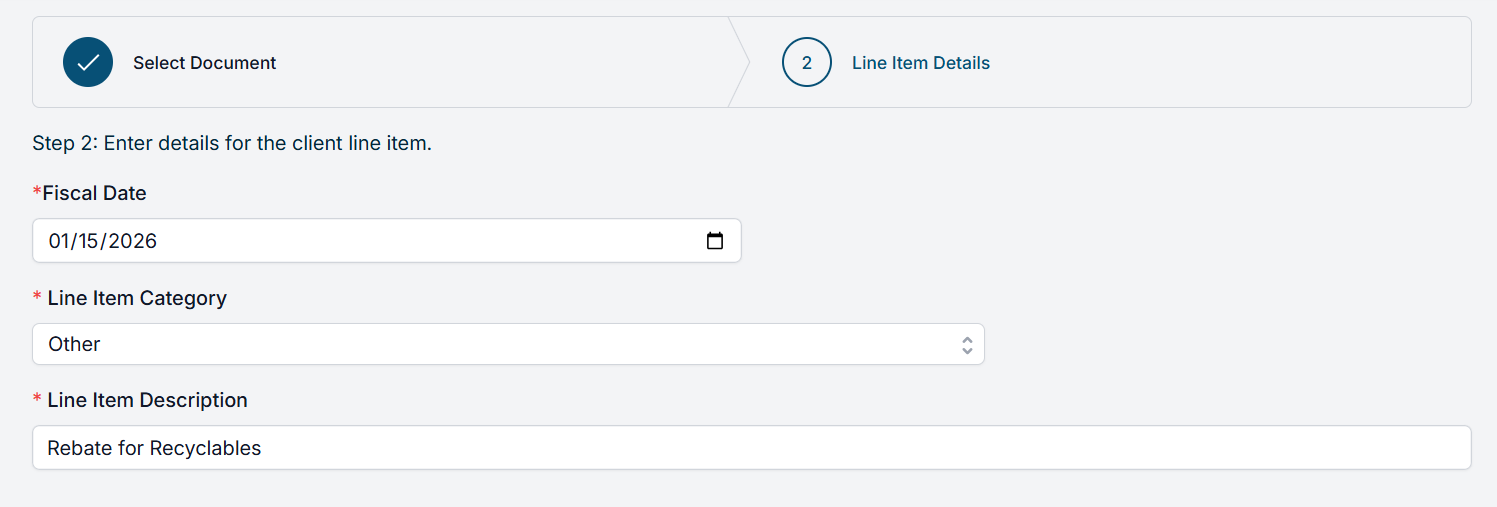
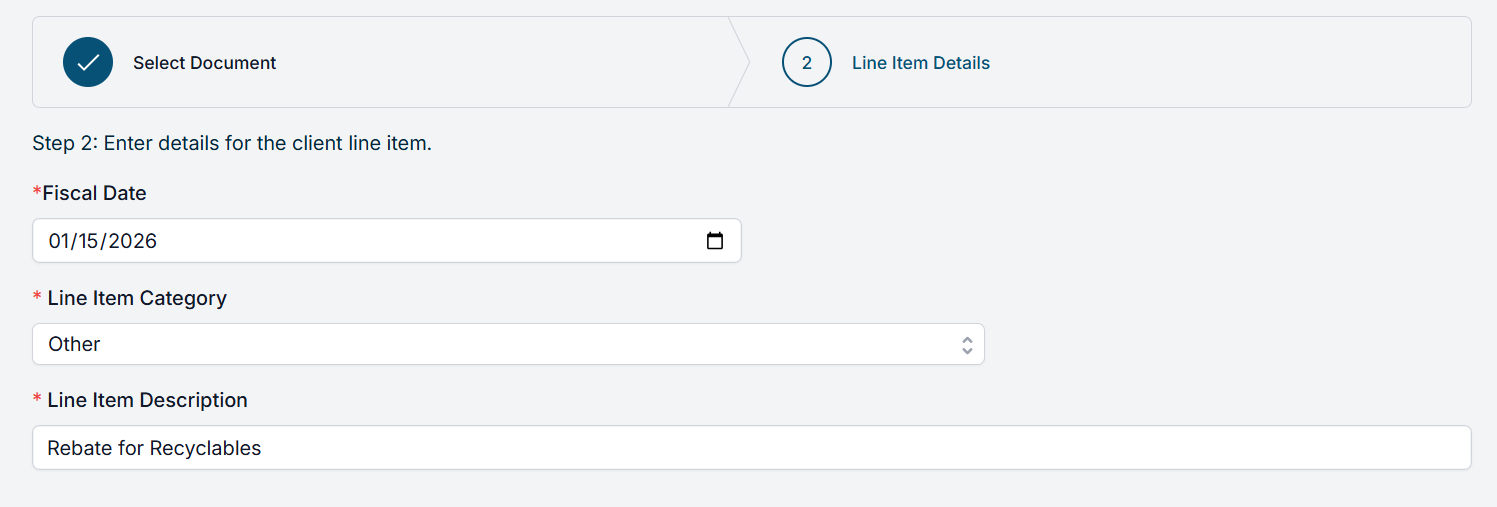
- If creating a new invoice, choose a Fiscal Date, Line Item Category and then enter a Line Item Description. If applying to an existing invoice, you only need to enter the Line Item Category and Line Item Description.
- Click on Save.
- You will now be directed to the client invoice.
- If creating a new invoice with a negative amount, you can convert the invoice to a credit memo.
- If adding to an existing invoice, you will see the updated client invoice that now includes a line item for your rebate.
How do I Add a Rebate to a Credit Memo?
- Go to Rebates and find your desired rebate. Click on the rebate to view it.
- Click Actions, then Add to Client Billing Document. This option only appears when the rebate is Ready.
- Choose New Client Credit Memo, or pick a credit memo under Existing Client Credit Memos. Only credit memos for the location's client account that are Not Sent are listed. Then click Next Step.
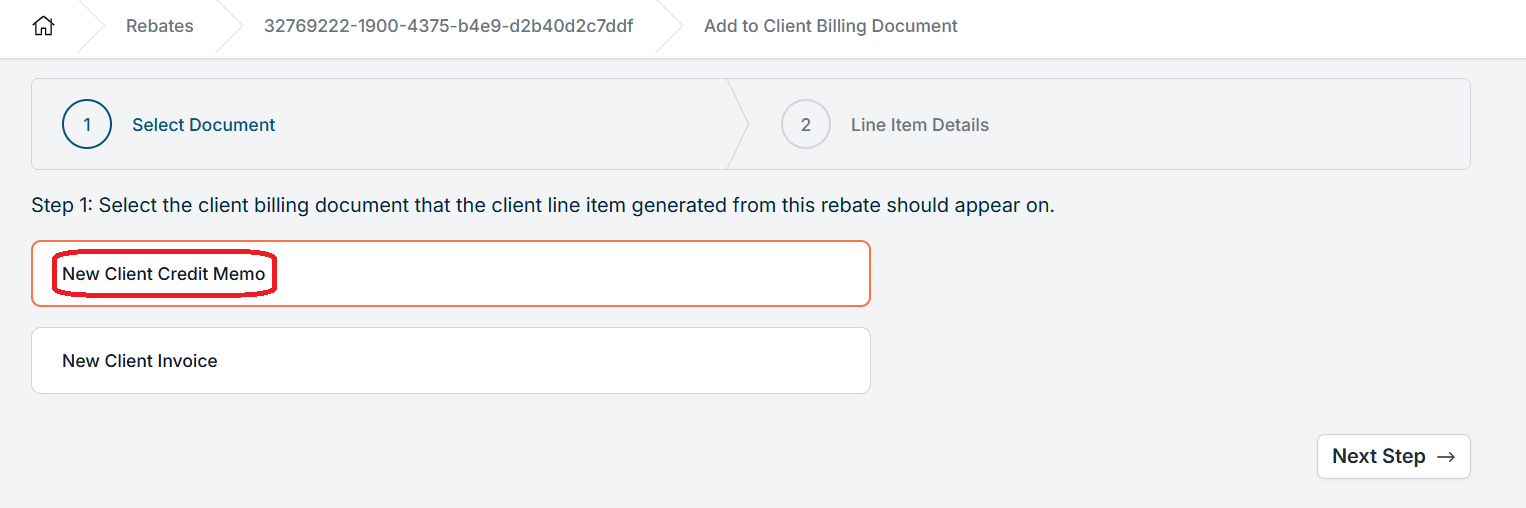
- If creating a new credit memo, choose a Fiscal Date. Choose a Line Item Category and then enter a Line Item Description.
- Click on Save.
You will now be directed to the credit memo, where you can edit, email or print it.
When a Rebate Does Not Affect Client Invoicing
Not all rebates are passed to the client.
A rebate will only appear on a client invoice or credit memo if it is applied to an invoice and includes a rebate amount to credit the client.
If a rebate is created for tracking purposes only and is never added to a client invoice:
- It will remain visible in the Rebates list
- It will not reduce any client invoice totals
- It is used for internal tracking and reporting only
This allows you to record vendor-related adjustments even when they are not passed along to the client.
How do I Connect Pickups to Rebates?
When creating a rebate, you will have the option to connect the rebate to a pickup. The options for connection are:
- New: Creates a new pickup using data from the rebate
- Existing: Select from a list of existing pickups
- None: Do not connect the rebate to a pickup at this time
Rebates and pickups may have a 1:1 relationship, meaning that a single rebate cannot be connected to more than one pickup. Likewise, a single pickup may not be connected to more than one rebate.
Upon connecting the rebate to a pickup, you will see a link to the pickup on the rebate's view page.
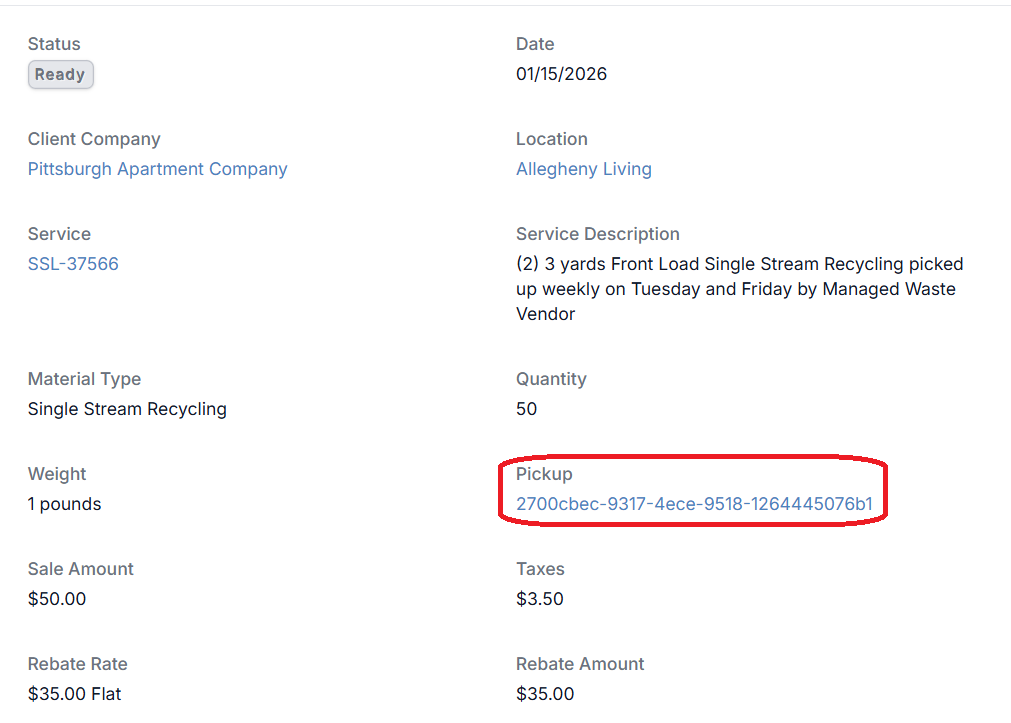
If you make a mistake or would like to detach the pickup from the rebate, you can click on Actions and then select Remove Connection to Pickup.

Removing the connection removes the pickup that was connected to the rebate, and Discovery refreshes that service's pickups for the same dates. The rebate's weight and cost will no longer appear on any pickup.
Please refer here to learn more about connecting rebates to pickups.
Rebates are not a standard feature of Discovery. If you're interested in exploring rebate functionality for your organization, please contact us for more information.

If you have additional questions or need more in depth information, please feel free to send us a message using the help beacon in the lower right-hand corner.