
Allocated Values
Allocated Values show how each fee and sales tax on a Vendor Invoice is spread across the invoice's charges. Discovery adds each charge's share of the fees and taxes to the charge itself to arrive at its All in Cost: the true cost of that service, and the figure Discovery uses in cost reporting.
This article covers how allocation works, how to read the Allocated Values and Sales Tax Application sections of a Vendor Invoice, and how to change them while auditing.
How allocation works
When a Vendor Invoice moves to Allocated, Discovery spreads two kinds of line items across the invoice's charges (Base Charges, Rolloff and per-unit charges, and Extraneous Charges):
- Allocatable Fees (for example, a fuel surcharge or a regulatory recovery fee) are split across the charges in proportion to each charge's Cost Basis. A fee set up as recycling-only is split across the recycling charges only.
- Sales Taxes are split across the charges and fee shares that are marked taxable, in proportion to their amounts. Anything not marked taxable gets no tax.
A charge's Cost Basis is its amount plus any Allocatable Service Fees attached to that charge's Service. Its All in Cost is the Cost Basis plus its share of the Allocatable Fees and Sales Taxes. Once allocation is right, the All in Costs of all the charges add up to the invoice total.
Example
Let's use a Vendor Invoice for $895.97 from Garden State Disposal with one location and these line items:
| LINE ITEM | TYPE | TOTAL |
| Front Load Trash | Base Charge | $650.00 |
| Organic Service | Base Charge | $155.00 |
| Fuel Surcharge | Allocatable Fee | $40.25 |
| County Tax (6%) | Sales Tax | $50.72 |
-
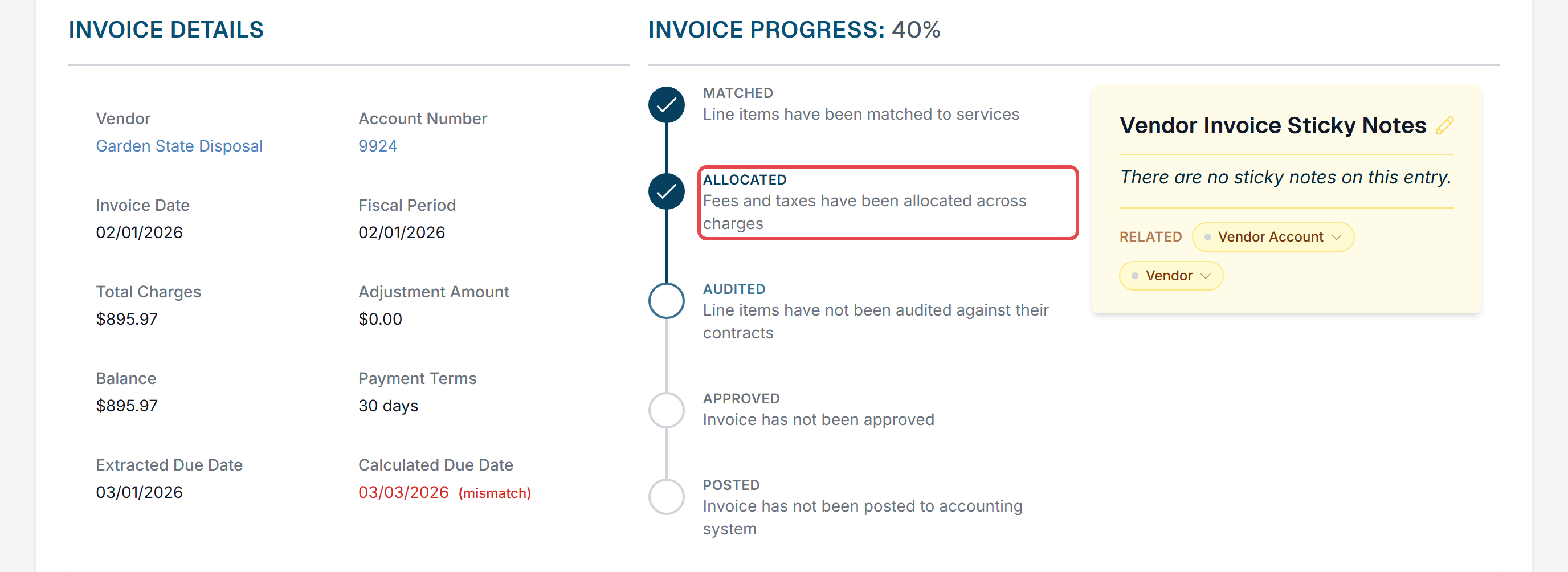
Transition the invoice from Matched to Allocated by clicking the Allocated step on the Invoice Progress controls.
-
Scroll down and click the Allocated Values header to expand it. Front Load Trash makes up 80.75% of the cost basis ($650.00 of $805.00), so it receives $32.50 of the $40.25 fuel surcharge, and Organic Service receives the remaining $7.75. The county tax is split the same way. Front Load Trash has an All in Cost of $723.45 and Organic Service $172.52, which together equal the invoice total.
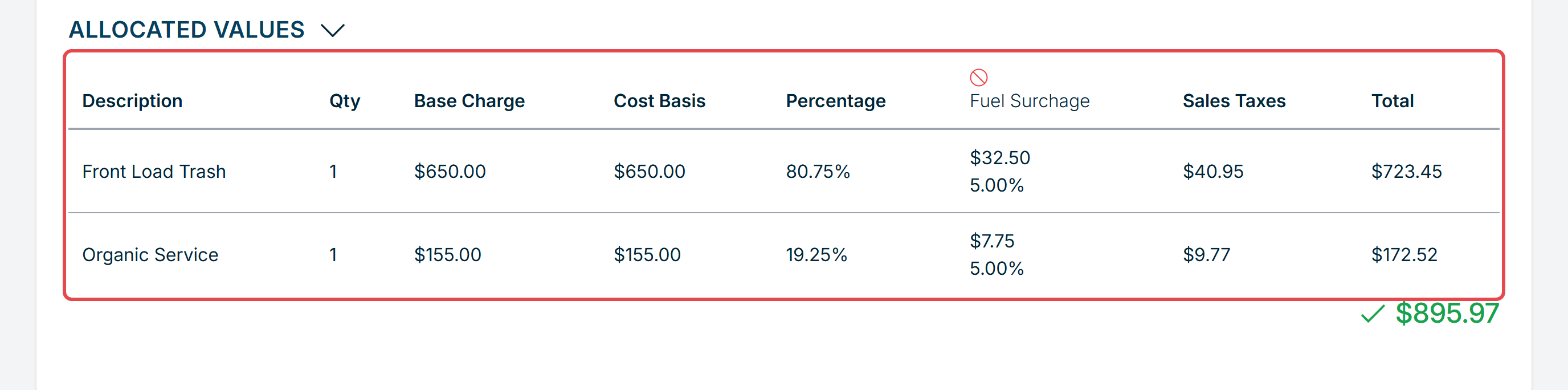
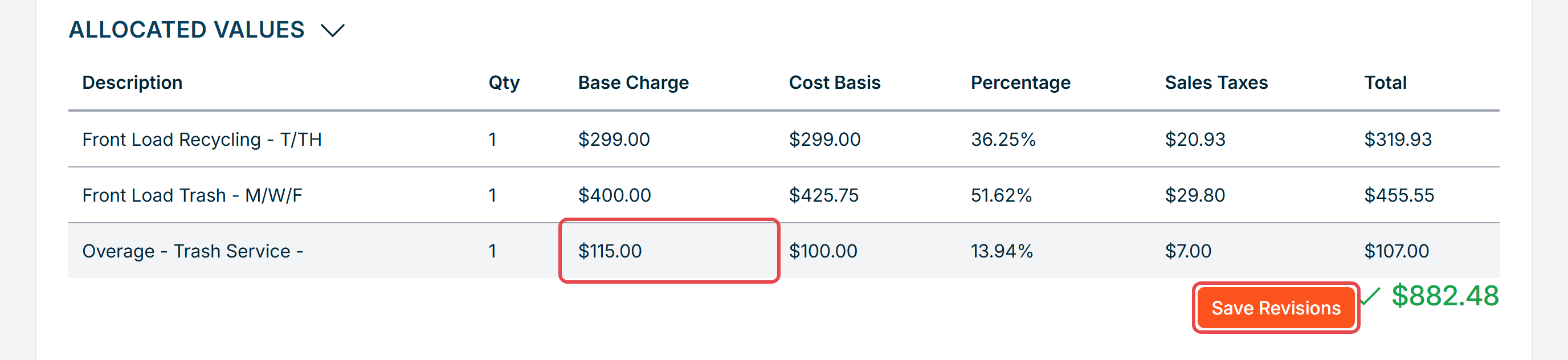
The table has one row per charge, with these columns:
- Description and Qty: the charge and its quantity.
- Base Charge: the charge's amount.
- Cost Basis: the charge plus any Allocatable Service Fees on its Service.
- Percentage: the charge's share of the invoice's total cost basis.
- One column per Allocatable Fee: the amount of that fee allocated to the charge, with the fee's rate (a percentage, a unit cost, or a fixed amount, depending on how the fee is set up).
- Sales Taxes: the charge's share of the sales tax.
- Total: the charge's All in Cost.
Below the table, the sum of the All in Costs shows in green with a check mark when it matches the invoice total, and in red when it doesn't.
Sales Tax Application
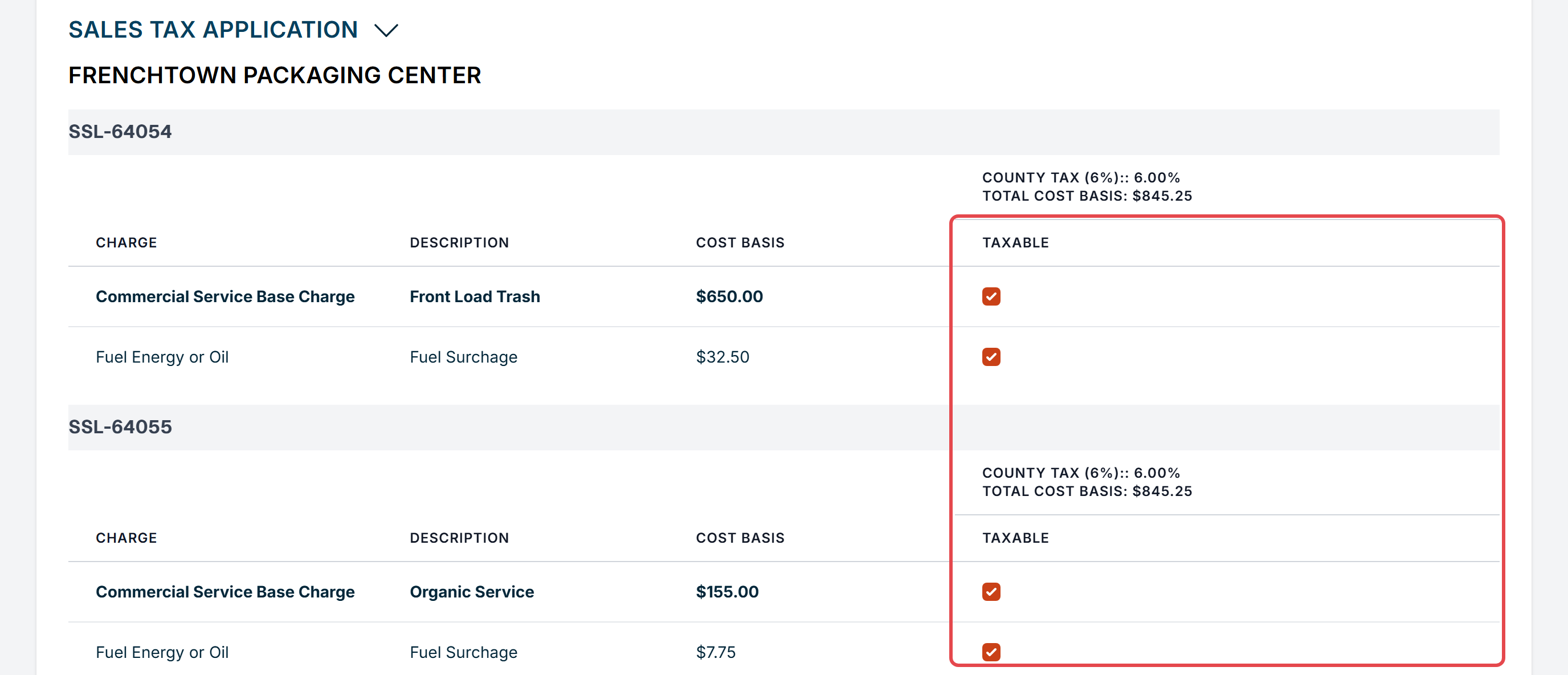
The Sales Tax Application section controls which charges and fee shares each Sales Tax applies to. It only appears on invoices with at least one Sales Tax line item. It is grouped by location, then by Service, and has a Taxable checkbox for each charge and for each charge's share of every Allocatable Fee.
Discovery sets the starting checkboxes from your Vendor Sales Tax rules when every location on the invoice is in the same state or province. When the invoice covers more than one state or province, or no rule matches, every item starts as taxable.
-
Click the Sales Tax Application header to expand it. In our example, every item is taxable, so the $50.72 county tax is spread across the full $845.25 cost basis.
-
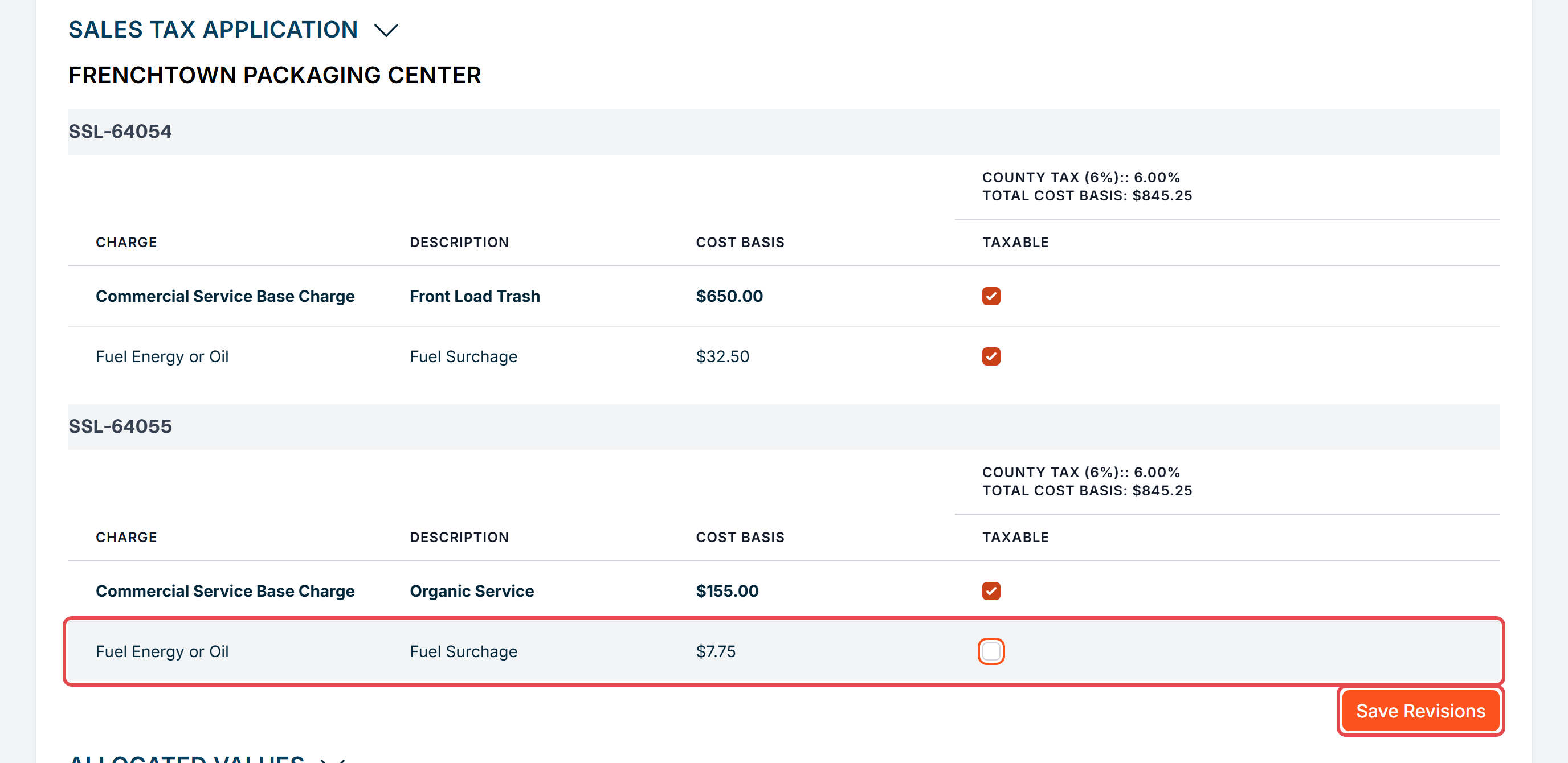
If the vendor didn't tax an item, uncheck its Taxable box. Here we've decided the fuel surcharge share on the Organic Service isn't taxable. The row turns gray to show it has an unsaved change, and the Save Revisions button appears.
- Click Save Revisions. Changes are not applied until you save. Discovery then recalculates how the tax is spread and updates each charge's All in Cost.
Note: Before an invoice is Audited, changing what is taxable only changes how the tax is spread across charges. The Sales Tax line items and the invoice total stay the same. On an Audited invoice, Discovery also recalculates each Sales Tax line item in proportion to the audited amounts of the taxable items, so the tax total can change if a taxable charge or fee was adjusted.
If unchecking a box would leave a tax with nothing taxable to apply to, the save is rejected with the message Taxable cost basis cannot be zero. Changing what is taxable is also one way to fix an invoice in Invalid Allocation: if the All in Costs add up to the invoice total after you save, the invoice moves to Allocated.
What happens when the invoice is audited
When you click the Audited step, Discovery audits each charge against the rates on its Service and each fee against your contract and Service fees. When a charge or fee is billed above what you've set up, Discovery adjusts it down on the Vendor Invoice, recalculates the allocations, and recalculates any Sales Tax on the adjusted items.

On the Line Items, an adjusted amount shows the billed amount struck through next to the audited amount. In this example, an overage billed at $115.00 was adjusted to $100.00, a contamination fee billed at $150.00 was adjusted to $25.75, and the county tax was recalculated from $67.48 to $57.73.

Important: Clicking the Audited step runs the audit again, which removes any changes you've made to the invoice's allocated values. Discovery asks you to confirm before it does this. Make your edits after the invoice is Audited, not before.
Editing allocated values
You can edit the Qty and Base Charge of a charge, and the amount of each fee share (or its unit cost, for a unit-based fee), directly in the Allocated Values table. Each change is queued as a revision, and nothing on the invoice changes until you confirm your revisions. The Cost Basis, Percentage, Sales Taxes and Total columns update when you save.
A common reason to edit is to accept an overbilling. If Discovery adjusted a charge down during audit, but you've decided to pay the amount the vendor billed, change it back to the billed amount:
-
On the Audited invoice, expand Allocated Values, click the Base Charge of the charge, and type the billed amount in dollars and cents (for example, 115.00), not in cents. Click out of the box, and the row shows the new amount formatted as currency so you can check it. Here we're accepting the $115.00 overage. The row turns gray and the Save Revisions button appears below the table.
-
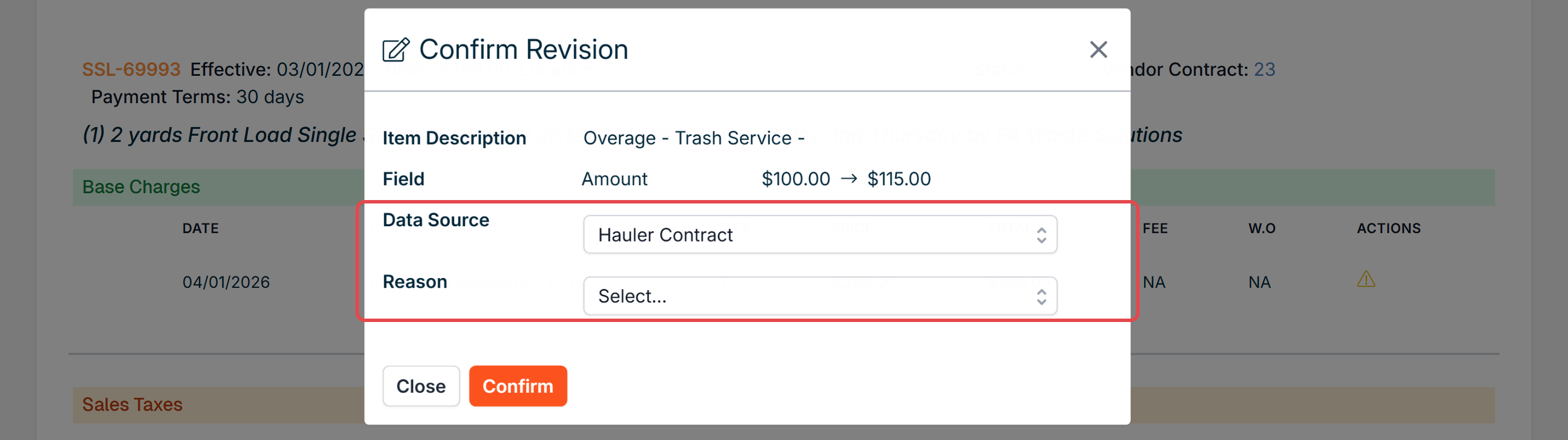
Click Save Revisions. The Confirm Revision window lists each change. For each one, choose a Data Source and a Reason, then click Confirm.
- Discovery recalculates the allocations and any Sales Tax on the edited items, updates the invoice total, and sets the invoice to Audited.
Note: Amounts can have at most two decimal places. If an amount can't be applied, the Confirm Revision window shows the error above your revisions, and the invoice stays as it was.
To remove a fee from the invoice entirely, click the ⊘ icon above that fee's column. This sets every share of the fee to $0.00 as a pending change. Click Save Revisions and confirm it the same way.

Who can edit, and when
- Editing allocated values and taxable items requires the Manage permission for Audit.
- They can be edited while the invoice is Allocated, Invalid Allocation or Audited. Both sections are hidden while the invoice is Matched.
- Once an invoice is Approved, they can't be edited. To make a change, first roll the invoice back to Audited by clicking the Approved step. See How Do I Audit a Vendor Invoice? for when a rollback is allowed. After your changes, approve it again.
Where All in Costs are used
- Reporting: each Service's cost in the monthly reporting summaries is its All in Cost, including its share of the Sales Tax.
- Accounting: when an invoice is posted to QuickBooks, each charge is posted at its All in Cost less its Sales Tax share, and Sales Tax is posted as separate lines.
Revenue customers: profit margin reports use each Service's All in Cost without its Sales Tax share. Billable Expenses use the audited amounts while Short Pay After Approval is on in Settings (the default), so accepting an overbilling also raises what you bill your client. If that setting is off, or the client account has Bill Unaudited Vendor Invoice Line Items turned on, they use the amounts the vendor billed instead.

If you have additional questions or need more in depth information, please feel free to send us a message using the help beacon in the lower right-hand corner.